
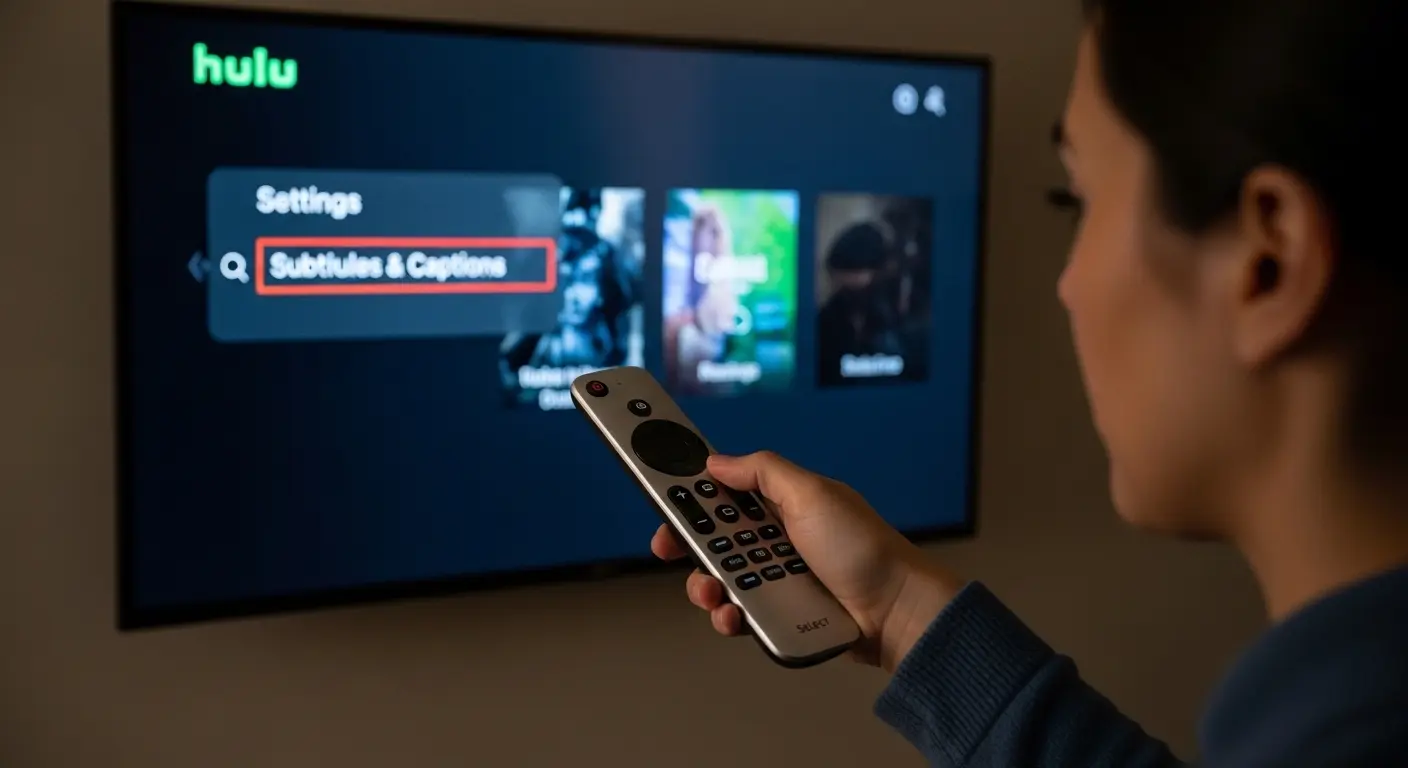
Closed captions on Hulu are on‑screen text that display dialogue, sound effects, and speaker identification to make TV shows and movies more accessible. You can activate them through Hulu’s subtitle or captions settings while watching content on any supported device.
Whether you’re hearing impaired, learning a language, or binge‑watching in a noisy room, knowing how to get closed captions on Hulu makes your streaming experience better and more inclusive. The steps vary slightly depending on whether you’re using a smartphone, browser, smart TV, streaming stick, or game console but once you learn them, you’ll always be in control of your captions and subtitles.
Let’s walk through everything you need, from basics to pro tips and troubleshooting.
🎬 How Do You Get Closed Captions on Hulu (Web Browser)
Activating captions while streaming Hulu in a browser (Chrome, Safari, Firefox, Edge) is quick:
-
Log into Hulu.com on your computer.
-
Start playing the show or movie you want to watch.
-
Hover your cursor over the video to display the controls.
-
Click the Settings (gear) icon in the player. 👆
-
Select “Subtitles & Audio” or “Subtitles.”
-
Choose the Closed Captions option (e.g., English [CC]).
-
Your captions should appear immediately. 📜
• To turn them off, return to the same menu and select Off.
💡 Captions will generally stay on for future videos on that device until you change them again.
📱 How Do You Get Closed Captions on Hulu (Mobile App – iOS & Android)
Getting closed captions on Hulu’s mobile app differs just a bit from the browser:
-
Open the Hulu app on your iPhone, iPad, or Android.
-
Tap a show or movie and let it start playing.
-
Tap the video screen to reveal playback controls.
-
Tap the Caption/Subtitles (speech bubble) icon.
-
Switch the toggle to On (or Auto) under Subtitles & Captions.
-
Pick your preferred language, like English (CC). 📜
-
Tap X or tap away to resume watching with captions.
👉 Sometimes the appearance and location of this icon can shift slightly depending on app updates.
📺 How Do You Get Closed Captions on Hulu (Smart TV & Streaming Devices)
Many people watch Hulu on big screens — here’s how to get captions on those:
With a Smart TV
-
Open the Hulu app on your TV.
-
Start playing the title you want.
-
Press Up or use the swipe/remote gesture to show the playback bar.
-
Select Settings or Audio & Subtitles / CC from that menu.
-
Switch Closed Captions / Subtitles On.
-
Choose the language (if available).
Using Roku, Fire TV, Apple TV, Chromecast, Game Consoles
Process is similar:
-
Press Up or OK/Enter on your remote to open the playback menu.
-
Navigate to Settings / CC / Subtitles & Audio options.
-
Enable Captions or Subtitles and pick your language.
📌 Each streaming platform’s menu might look slightly different, but the logic is the same: find captions or subtitles in the playback controls and turn them on.
🛠 Device‑Specific Closed Caption Notes
Different devices sometimes require extra touches:
📺 Roku
-
Use the asterisk () button* to open caption options quickly during playback.
-
Some Roku users report needing to toggle captions every time they open the app if settings don’t stick.
🎮 PlayStation / Xbox
-
Captions are usually enabled within playback controls, but some console menus may have accessibility settings that override them.
-
If subtitles are misaligned or glitching on consoles, updating the app or restarting the system can help.
📱 Android & iOS
-
If captions don’t appear after toggling them in the app, check system accessibility settings to ensure they aren’t overriding Hulu’s settings.
📋How to Customize Captions (Style & Size)
Some people want captions that are easy to read without covering the screen. Here’s how:
💻 On Web
-
Click Settings > Subtitles & Audio.
-
Click Settings again to adjust font, size, color, background, opacity, etc.
-
Save your preferences.
📱 On iPhone/iPad
-
Go to Settings > Accessibility > Subtitles & Captioning.
-
Choose a preset style or create a custom one with your favorite font and colors.
🤖 Android / Smart TV
-
Some devices let you adjust caption style in Accessibility settings, but not all support full customization.
💡 Customizing captions can be great for clarity if you’re watching in bright light or prefer certain fonts.
🧩 Why You Might Not See Captions (Common Reasons)
If you enabled captions but don’t see them, consider these:
-
The title doesn’t have caption files available — not all content supports captions yet.
-
Wrong language selected — change to the correct option in the subtitles menu.
-
App glitch or outdated version — update the Hulu app or restart it.
-
Device override – your phone or TV accessibility settings may override Hulu’s subtitle settings.
-
Cache or network issue — try restarting your device.
🧠Troubleshooting Tricks for Subtitles That Won’t Work
If you’ve turned captions on but they’re not showing, try these:
First, Simple Fixes
✔ Turn subtitles off then back on.
✔ Restart the video or app.
✔ Try a different show to see if captions work elsewhere.
Device & System‑Level Fixes
✔ Update the Hulu app and your device’s software.
✔ Check accessibility settings under device Settings > Accessibility > Captions.
More Advanced
✔ Clear the app cache (Android).
✔ Remove and reinstall Hulu.
✔ Restart your streaming device fully.
🎓Captions vs. Subtitles — What’s the Difference?
Although often used interchangeably:
🔹 Closed Captions (CC) include spoken words, sound effects, speaker labels, and non‑speech audio cues. These are ideal for the deaf or hard‑of‑hearing audience.
🔹 Subtitles usually focus on the dialogue and are great for reading foreign languages or noisy rooms.
Hulu’s interface may call them “Subtitles & Captions,” and both can be toggled depending on the content’s available options.
📊Accessibility Importance of Closed Captions
Closed captions make streaming more inclusive:
-
Aid viewers with hearing differences.
-
Help when watching without sound (e.g., loud environments).
-
Make learning languages easier.
-
Clarify accents or quiet dialogue.
Hulu’s captions improve accessibility for everyone and are part of broader streaming inclusivity standards.
❌ Mistakes to Avoid With Hulu Captions
Avoid these common missteps:
🚫 Assuming captions apply across all devices automatically.
Each device often needs its own caption settings.
🚫 Leaving system accessibility settings unchanged.
Device‑level caption settings can override Hulu’s.
🚫 Not updating the app.
Older app versions may have bugs impacting captions.
🚫 Expecting captions for all content.
Not every title supports all languages or caption formats.
❓ 11. FAQ — Closed Captions on Hulu (Snippet‑Ready)
1. How do you get closed captions on Hulu?
Activate them via the settings or subtitles icon during playback and select your language.
2. Why aren’t closed captions showing on Hulu?
The show may not support captions, settings might be off on your device, or the app needs updating.
3. How do I change caption language on Hulu?
Open subtitles menu and choose a different language if available.
4. Do captions stay on for all shows?
They usually stay once set on that device, but not all content supports them.
5. How do I turn off captions on Hulu?
Return to the subtitles settings and select Off.
6. Can I customize caption appearance?
Yes — fonts, size, color, and backgrounds can be adjusted on certain devices.
7. Will captions sync correctly with dialogue?
Generally yes, though sometimes they may lag due to device or app issues. Restarting helps.
8. Are captions available in languages other than English?
Some content supports multiple languages like Spanish, shown in the subtitles menu.
💡 Conclusion
Learning how to get closed captions on Hulu empowers you to tailor your viewing experience to your needs whether for clarity, accessibility, language support, or noisy environments. Captions are easy to turn on through the playback or accessibility menus across devices, and with a few tips and troubleshooting techniques, you can ensure they work smoothly every time you stream.
Enjoy watching, with words that bring every story to life! 🎬📜

Blending creativity and humor to build memorable brand voices.