
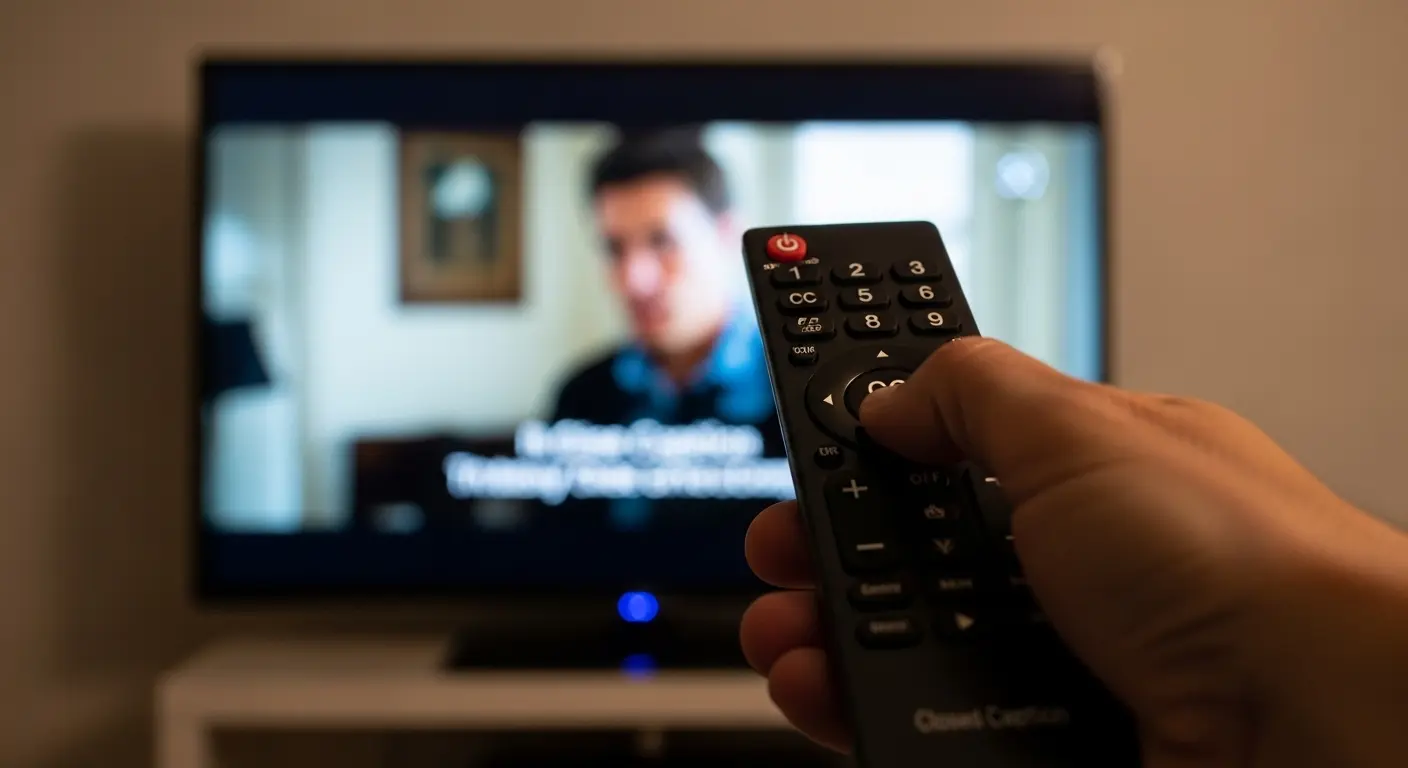
If you’ve ever been distracted by the words scrolling at the bottom of your TV screen, you’re not alone. “How do you take captions off the TV?” is a common question among viewers who prefer a clean viewing experience.
Captions, also known as closed captions or subtitles, can usually be turned off through your TV’s settings, remote control, or streaming platform. This guide walks you through every method, tips, and expert strategies to ensure your viewing experience is exactly how you want it.
Whether it’s your smart TV, cable box, or streaming service, you’ll find clear, actionable steps, plus bonus insights for making your screen truly yours. Let’s dive in!
What Are TV Captions and Why Do They Exist?
Captions are on-screen text that display spoken dialogue, sound effects, and other audio cues. Originally created for accessibility, they help:
-
People who are deaf or hard of hearing
-
Non-native speakers to understand dialogue
-
Viewers in noisy environments
While captions are helpful, sometimes you simply want the screen clutter-free. Understanding their purpose is the first step to managing them effectively.
How to Turn Off Captions on a Smart TV
Step-by-step guide:
-
Press the Menu button on your remote.
-
Navigate to Settings → Accessibility or Captions/Subtitles.
-
Toggle Captions Off.
💡 Pro tip: Some smart TVs allow caption customization (font, size, color). Adjusting these may make captions less intrusive without turning them off completely.
Turning Off Captions on Cable or Satellite TV
If you’re using a cable box or satellite TV:
-
Press the Menu button.
-
Go to Settings → Closed Captions.
-
Select Off.
📺 Popular cable brands like Xfinity, Spectrum, and Dish all have slightly different paths, but the principle remains the same.
Streaming Platforms and Caption Settings
Most streaming platforms allow you to toggle captions easily:
-
Netflix: Click the speech bubble icon → select Off.
-
Hulu: Click the settings icon → choose Subtitles → Off.
-
Disney+: Click the speech bubble → toggle captions Off.
-
Amazon Prime Video: Click the speech bubble → choose Off.
💡 Note: Captions are often saved per profile, so you may need to adjust them for each user.
One-Click Caption Removal Using Your Remote
Many modern remotes have a dedicated CC button. Pressing it will instantly toggle captions on or off. This is perfect for quick adjustments without digging through menus.
Why You Might Struggle to Turn Captions Off
Some common issues include:
-
Outdated TV firmware
-
Locked parental controls
-
Streaming app overrides
-
Incorrect remote button usage
✅ Fix: Update your TV software, check parental control settings, or refer to your device’s manual.
Seasonal or Occasion-Based Caption Tricks
Did you know captions can be used creatively? During holidays or events:
-
Christmas movies: Keep captions on to catch dialogue in noisy living rooms 🎄
-
Sports events: Turn captions off to focus on the action ⚽
-
Romantic evenings: Turn captions off for a cozy, uninterrupted vibe ❤️
Short Captions for Quick Viewing Notes
Sometimes, captions are helpful in moderation. For those moments, use short, concise subtitles on streaming apps:
-
“LOL 😆”
-
“OMG 😍”
-
“Wait, what? 😳”
-
“Yesss! 🙌”
This keeps the vibe fun without overwhelming the screen.
Cute Captions to Enjoy Your Shows
Even if you’re turning them off, captions can inspire content:
-
“Binge-watching with my love 🥰”
-
“Popcorn, PJs, perfection 🍿”
-
“Our favorite show, zero interruptions 💕”
-
“Movie night magic ✨”
These are perfect for Instagram posts about TV moments.
Funny Captions for Screen Time
Add humor to your viewing life:
-
“Me ignoring real life 🤷♀️”
-
“Plot twist incoming 😱”
-
“Can’t pause this love story 😍”
-
“Subtitles on, adulting off 😂”
One-Word Captions That Hit Hard
Minimalist and chic:
-
“Focused”
-
“Binge”
-
“Chill”
-
“Relax”
-
“Vibes”
-
“Mood”
-
“Obsessed”
Perfect for Instagram posts of TV setups or cozy corners.
Romantic Captions for Couples
Because watching TV together is intimate:
-
“My forever binge partner ❤️”
-
“Love in every scene 💕”
-
“Cuddles > captions 🥰”
-
“Plot twists with you are the best 😘”
Engagement CTA: Tag your partner ❤️
Emotional Psychology Behind TV Captions
Captions can affect your emotional engagement. Here’s why:
-
Cognitive load: Reading captions while watching can be mentally taxing.
-
Emotional immersion: Turning captions off can deepen connection with characters.
-
Couple bonding: Shared viewing without distractions strengthens intimacy.
Understanding this can enhance both your viewing pleasure and content creation ideas.
Caption-Writing Framework for Instagram Posts
Even if you turn captions off on TV, they inspire social media content. Here’s a framework:
-
Hook: Grab attention in 3 words
-
Emotion: Share how it makes you feel
-
Engagement CTA: “Comment your favorite scene ❤️”
-
Hashtags: Use 5–10 highly relevant hashtags
Engagement Strategy Insights
Use captions to boost social media engagement:
-
Post TV night stories with relatable captions
-
Encourage audience interaction (“Which episode? 👀”)
-
Use emoji strategically to evoke emotion
💡 Tip: Posts with emotional resonance see up to 2x more saves and shares.
Mistakes to Avoid
Common errors when managing captions:
-
Forgetting to turn captions back on for accessibility needs
-
Over-customizing font size/color, making them unreadable
-
Ignoring device-specific differences
-
Relying on CC button alone without checking app settings
Hashtags for Caption-Related Content
For Instagram or social media posts about TV captions:
-
#TVTime
-
#MovieNight
-
#CaptionFree
-
#BingeWatch
-
#ScreenLife
-
#CozyVibes
-
#CoupleGoals
-
#RomanticEvening
-
#StreamingLife
-
#PopcornAndChill
Platform-Specific Tips
-
Netflix: Captions are profile-specific
-
Hulu: Must adjust for each device
-
YouTube: CC button sometimes hidden
-
Smart TVs: Firmware updates affect caption settings
💡 Always double-check before hosting movie nights!
Advanced Settings for Tech Enthusiasts
For those who want complete control:
-
HDMI settings: Some devices pass captions automatically
-
Streaming devices: Roku, Fire Stick, Apple TV have separate caption toggles
-
Accessibility shortcuts: Customize shortcut keys for quick caption removal
Captions for Kids’ Shows
-
Turn on captions to teach reading or language skills
-
Turn off for relaxed, playful time
-
Customize colors to make them fun 🎨
Captions for Live TV Events
-
Sports: Turn off captions for faster pace
-
Concerts: Turn on captions to catch lyrics
-
News: Keep captions on for clarity
Accessibility vs. Preference
Even if you prefer no captions, always respect accessibility:
-
Consider leaving captions on for guests with hearing impairments
-
Highlight your awareness on social media to promote inclusion 💜
FAQs (Optimized for Featured Snippets)
Q1: How do you turn off captions on Samsung TV?
A: Press Menu → Settings → Accessibility → Captions → Off.
Q2: Why won’t my TV let me turn captions off?
A: Check parental controls, update software, or verify app-specific settings.
Q3: Can I remove captions permanently?
A: Yes, by turning them off in device or app settings; some streaming platforms save preferences.
Q4: Do captions affect screen time for kids?
A: Yes, captions can increase reading and comprehension skills but may reduce emotional immersion.
Q5: Are captions the same as subtitles?
A: Captions include audio cues; subtitles display spoken dialogue only.
Q6: How do I turn off captions on Hulu?
A: Click the settings icon → Subtitles → Off.
Q7: Can I customize captions instead of removing them?
A: Yes, most devices allow font, size, color, and background customization.
Q8: Do streaming devices have separate caption controls?
A: Yes, devices like Roku, Apple TV, and Fire Stick have their own toggles.
Q9: Do captions improve comprehension for non-native speakers?
A: Absolutely, they help follow dialogue and improve language skills.
Q10: How do I remove captions during live TV sports?
A: Access closed captioning in settings or use the CC button on your remote.
Final Thoughts
Knowing how do you take captions off the TV is more than a technical tip it’s about controlling your experience, enhancing emotional engagement, and even inspiring creative social content.
Whether you’re binge-watching, enjoying a romantic night, or hosting friends for a movie marathon, captions can be your ally or optional distraction. With the right approach, you can enjoy every scene, share relatable moments, and make your viewing experience uniquely yours.
✨ Pro Tip: Tag a friend or partner ❤️, save this guide for your next movie night, and never miss a beat—on screen or in life.

Delivering clean, minimal, and impactful caption writing.