
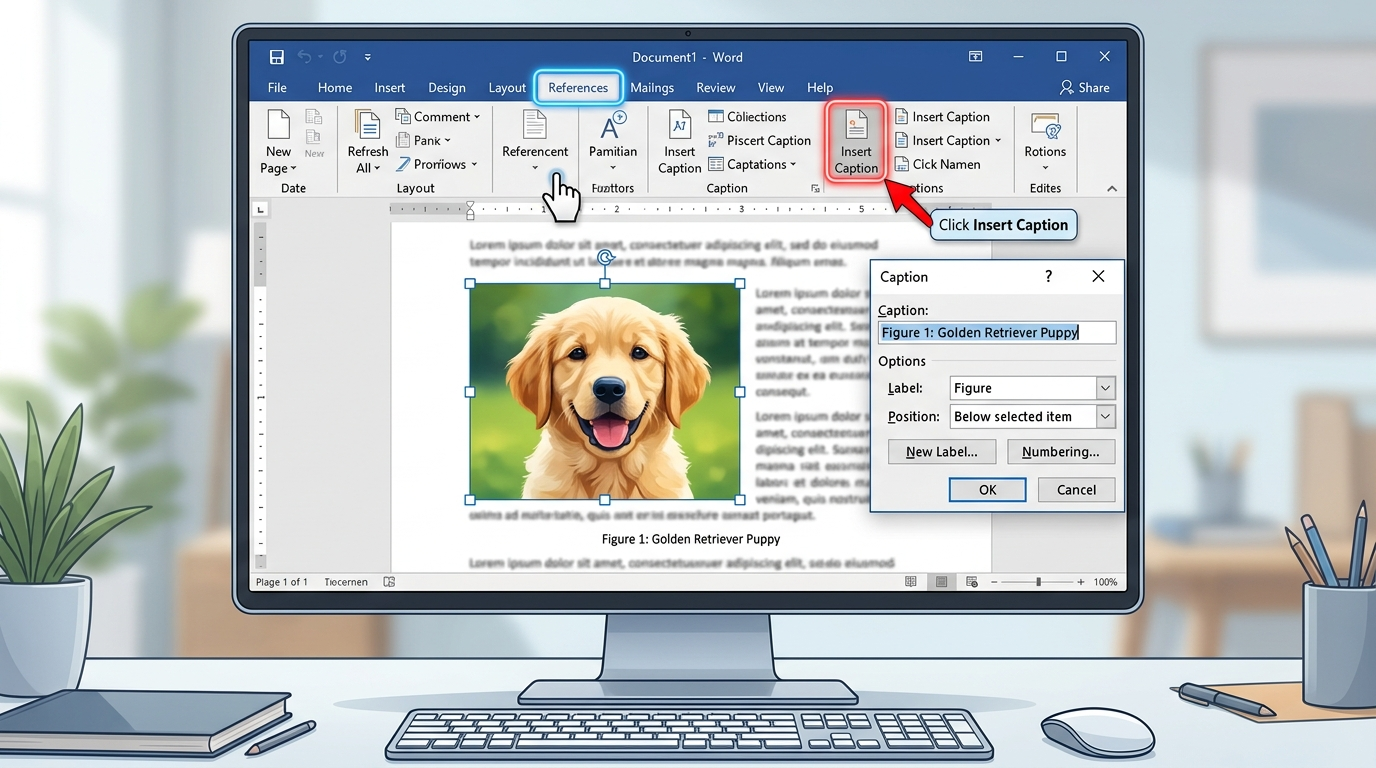
In Microsoft Word, a caption is a label or description that can be added to objects like images, tables, or charts to provide context or reference. Captions make documents professional, easy to navigate, and accessible, especially for academic, business, or technical content.
Learning how to insert a caption in Word allows you to automatically number your figures, maintain consistent formatting, and generate tables of figures efficiently. Whether you’re working on a thesis, report, or presentation, adding captions can save time and improve clarity while enhancing readability. Let’s dive into a complete, step-by-step guide!
Understanding Captions in Word 📝
-
Captions are small pieces of text placed above or below images, tables, or charts.
-
They help readers understand visuals at a glance.
-
Microsoft Word auto-numbers captions for easy reference.
-
Captions improve document accessibility for screen readers.
-
You can customize caption styles with fonts, colors, and alignment.
-
They can be included in a Table of Figures for automatic updates.
-
Captions can include labels like Figure, Table, or custom labels.
-
Using captions ensures consistency across long documents.
-
They are helpful for academic papers with multiple visual references.
-
Word supports multilingual caption labels.
-
Captions can link to cross-references in your text.
-
You can modify numbering schemes (1, 2, 3 or i, ii, iii).
-
Captions maintain formatting even if you move the object.
-
They can be automatically updated when new objects are added.
-
Using captions reduces manual numbering errors.
Inserting a Caption in Word: Quick Steps 🚀
-
Click on the object (image, table, or chart).
-
Go to the References tab in the Ribbon.
-
Click Insert Caption in the Captions group.
-
Select a Label (Figure, Table, Equation, or custom).
-
Choose Position (Above or Below the object).
-
Word auto-generates the caption text.
-
Add a brief descriptive title after the label.
-
Click OK to insert the caption.
-
Captions are automatically numbered sequentially.
-
To modify, right-click the caption and choose Edit Field.
-
You can change font, color, or alignment like normal text.
-
Captions are linked to the object for easy movement.
-
Use the New Label button to create custom labels.
-
Ensure consistent style using Word’s Styles pane.
-
Captions are now ready to reference in your document.
Customizing Caption Labels 🎨
-
Choose from default labels: Figure, Table, Equation.
-
Create a custom label for unique objects.
-
Avoid long or complicated labels for readability.
-
Use concise descriptions after the label.
-
Modify numbering format in Numbering options.
-
Choose Include chapter number for structured documents.
-
Customize font size and color to match your style.
-
Adjust alignment for visual balance.
-
Use italics or bold for emphasis.
-
Apply Word Styles for consistency.
-
Change captions for selected objects without affecting others.
-
Add prefixes like “Exhibit” or “Diagram” for legal/business docs.
-
Experiment with positioning above or below objects.
-
Keep numbering continuous across sections.
-
Regularly update formatting for multi-author documents.
Inserting Captions for Images 📸
-
Click on the image to select it.
-
Navigate to References → Insert Caption.
-
Select Label: Figure.
-
Choose Position: Below for clarity.
-
Type a descriptive text (e.g., “Mountain Sunset”).
-
Click OK to insert.
-
Images now have sequential numbering (Figure 1, Figure 2…).
-
Update captions automatically when new images are added.
-
Use consistent descriptive style (short, clear).
-
Avoid cluttering with long sentences.
-
Use cross-references to refer to images in your text.
-
Move images; captions will follow automatically.
-
Adjust style using the Styles pane.
-
Include emojis in casual documents for playful visuals 🌄✨
-
Save caption style for future documents to maintain consistency.
Adding Captions for Tables 📊
-
Click anywhere inside the table.
-
Go to References → Insert Caption.
-
Select Label: Table.
-
Decide on Position: Above (common for tables).
-
Add a short, descriptive text (e.g., “Sales Data Q1 2026”).
-
Click OK to insert.
-
Tables are automatically numbered sequentially.
-
Cross-reference tables in text for professional reports.
-
Maintain short titles for clarity.
-
Apply consistent style for fonts and spacing.
-
Use bold or italics to highlight important terms.
-
Update numbering when tables are added or removed.
-
Tables with captions can appear in a Table of Figures.
-
Avoid captions that duplicate text within the table.
-
Align table captions for visual appeal.
Captions for Charts & Graphs 📈
-
Click on the chart object.
-
Navigate to References → Insert Caption.
-
Select Label: Figure or create custom.
-
Choose Position: Below the chart.
-
Add a concise title (e.g., “Revenue Growth 2025”).
-
Click OK to insert.
-
Ensure numbering is consistent across all charts.
-
Captions help with clarity when charts are dense.
-
Use cross-references to guide readers to charts.
-
Keep descriptive text short and relevant.
-
Apply formatting (font, color, size) consistently.
-
Use charts in combination with tables for better clarity.
-
Captions remain linked if charts are moved.
-
Numbering updates automatically for new charts.
-
Include units or metrics in captions if relevant.
Using Cross-References with Captions 🔗
-
Cross-references allow you to link to a figure, table, or equation.
-
Place cursor where you want the reference.
-
Go to References → Cross-reference.
-
Choose Reference type: Figure/Table/Equation.
-
Select Insert as hyperlink for clickable references.
-
Choose numbering or full caption text for display.
-
Click Insert to add the reference.
-
Update cross-references automatically with F9.
-
Helps readers navigate large documents.
-
Reduces manual editing errors.
-
Maintain professional consistency in academic work.
-
Works across multiple chapters or sections.
-
Ideal for reports, thesis, and research papers.
-
Cross-references update when captions are added or removed.
-
Can include page numbers in references.
-
Streamlines final proofreading and formatting.
Formatting & Styling Captions 🎨
-
Highlight the caption text and apply Word Styles.
-
Bold or italicize keywords for emphasis.
-
Use consistent font size across all captions.
-
Adjust spacing to match object alignment.
-
Color-code captions for categories if needed.
-
Use left, center, or right alignment for readability.
-
Avoid underlining unless for emphasis.
-
Keep captions concise for visual balance.
-
Apply a border or shadow for visual separation.
-
Use Word’s Quick Styles for efficiency.
-
Save caption style as template for future documents.
-
Use emojis sparingly in casual documents ✨📸
-
Maintain readability across devices.
-
Format captions before finalizing document to save time.
-
Use headings and styles in combination with captions.
Automatic Numbering & Updates 🔢
-
Word auto-numbers captions sequentially.
-
Numbering updates when new objects are added.
-
Continuous numbering or per chapter options available.
-
Right-click → Update Field to refresh numbering.
-
Helps maintain academic or professional standards.
-
Numbering can include chapter numbers (1.1, 1.2, etc.).
-
Avoid manual numbering; increases error risk.
-
Update numbering before printing or exporting.
-
Numbering consistency is key for references.
-
Applies to images, tables, charts, and equations.
-
Numbering can be modified via Caption Numbering dialog.
-
Useful for multi-author documents.
-
Cross-references stay updated automatically.
-
Reduces editing workload.
-
Saves time in large projects or theses.
Creating Custom Caption Templates 📑
-
Go to References → Insert Caption → New Label.
-
Name your custom label (e.g., Diagram, Exhibit).
-
Apply consistent style via Styles pane.
-
Save template for future projects.
-
Combine with numbering options for organization.
-
Custom captions increase document clarity.
-
Use emojis or short keywords for playful or casual documents ✨
-
Ensure numbering updates automatically.
-
Apply across multiple objects for consistency.
-
Custom labels can include abbreviations (Ex., Fig.).
-
Templates reduce formatting errors.
-
Ideal for corporate, legal, or creative documents.
-
Use chapter numbering for structured documents.
-
Update template centrally for multi-author consistency.
-
Saves hours in document maintenance.
Caption Writing Tips for Clarity ✨
-
Keep captions concise and relevant.
-
Use keywords that describe the object.
-
Avoid repeating info from the main text.
-
Use consistent tone and style.
-
Include numbers or metrics when useful.
-
For casual docs, emojis can add personality 📸🌿
-
Bold key terms for emphasis.
-
Match caption tone to document type.
-
Avoid overly long sentences.
-
Proofread for spelling and grammar.
-
Use active verbs to describe visuals.
-
Maintain consistent case (title or sentence case).
-
Keep text visually balanced under object.
-
Include units or dates if applicable.
-
Use captions to guide reader attention.
Common Mistakes to Avoid ❌
-
Manually numbering captions.
-
Using inconsistent labels.
-
Forgetting to update fields.
-
Writing captions that duplicate text.
-
Placing captions far from the object.
-
Overloading captions with unnecessary info.
-
Ignoring cross-references.
-
Using different styles in same document.
-
Forgetting to save caption templates.
-
Not updating numbering after moving objects.
-
Ignoring accessibility standards.
-
Using inconsistent positioning above/below.
-
Forgetting chapter numbering for structured documents.
-
Omitting captions in professional reports.
-
Neglecting final proofread before publishing.
Using Captions in Academic Papers 🎓
-
Figures, tables, and charts require captions.
-
Helps instructors/reviewers locate references.
-
Use consistent formatting per style guide (APA, MLA, Chicago).
-
Include numbering for automated Table of Figures.
-
Cross-references improve navigation.
-
Avoid long descriptions; keep concise.
-
Include units, source, or dataset info.
-
Apply styles consistent with headings and text.
-
Use Word templates for thesis formatting.
-
Ensure captions follow object placement rules.
-
Update numbering before submission.
-
Proofread captions separately.
-
Check style guide requirements for spacing and font.
-
Keep tone formal and descriptive.
-
Captions enhance document professionalism.
Using Captions in Business Reports 📊
-
Label charts and tables for clear reference.
-
Highlight key metrics in captions.
-
Use consistent fonts and styles.
-
Cross-reference charts in the text.
-
Number sequentially for easier discussion.
-
Use abbreviations if common in reports.
-
Ensure positioning is visually balanced.
-
Add captions to executive summary visuals.
-
Customize labels like “Exhibit” or “Diagram”.
-
Avoid cluttering captions with excessive detail.
-
Maintain corporate branding standards.
-
Apply templates across documents.
-
Update numbering for quarterly reports.
-
Include dates for historical comparison.
-
Use captions to guide decision-making visuals.
Emotional Psychology Behind Captions ❤️
-
Captions help create a connection with the reader.
-
Descriptive captions reduce cognitive load and improve comprehension.
-
Clear captions increase engagement and retention.
-
Concise captions prevent frustration in academic or business contexts.
-
Emotional or playful captions enhance relatability in casual documents.
-
Visual and textual pairing improves memory encoding.
-
Highlighting key terms guides attention and understanding.
-
Structured captions foster trust and clarity.
-
Proper placement reduces reader anxiety navigating dense documents.
-
Encourages professional perception and authority.
-
Cross-referenced captions create navigational comfort.
-
Emotionally resonant captions in casual docs increase shareability.
-
Readers feel informed and guided.
-
Attention to detail in captions signals credibility.
-
Captions serve as emotional and cognitive anchors.
Caption Writing Framework for Word 🛠️
-
Step 1: Select object.
-
Step 2: Insert caption via References tab.
-
Step 3: Choose or create label.
-
Step 4: Add concise descriptive text.
-
Step 5: Adjust style (font, color, alignment).
-
Step 6: Update numbering.
-
Step 7: Add cross-reference if needed.
-
Step 8: Proofread for clarity and tone.
-
Step 9: Save as template for future use.
-
Step 10: Repeat for each object.
-
Step 11: Maintain consistent style across document.
-
Step 12: Review final layout.
-
Step 13: Update Table of Figures if used.
-
Step 14: Ensure accessibility compliance.
-
Step 15: Check automated numbering and links.
Seasonal or Special Occasion Captions 🎉
-
“Sales Growth Q1 2026 🌱📈”
-
“Holiday Metrics 🎄📊”
-
“Spring Launch Data 🌸📝”
-
“End-of-Year Review 🎆📈”
-
“Customer Feedback Q2 🗒️❤️”
-
“Marketing Campaign Feb 💌📊”
-
“Financial Overview March 💰📉”
-
“Team Achievements Jan 🏆✨”
-
“Annual Sales Report 📅📊”
-
“Project Milestones Completed 🎯✅”
-
“Quarterly Analysis Summer 🌞📈”
-
“Investor Highlights Autumn 🍁📊”
-
“Engagement Trends Winter ❄️📈”
-
“Special Event Metrics 🥳📊”
-
“Client Presentation April 🌷📈”
Hashtags for Word Caption Posts #️⃣
-
#WordTips
-
#CaptionTutorial
-
#MicrosoftWord
-
#OfficeHacks
-
#DocumentDesign
-
#WordFormatting
-
#AcademicWriting
-
#ProfessionalDocs
-
#TableOfFigures
-
#WordProductivity
-
#DocumentEditing
-
#OfficeTricks
-
#WordStyle
-
#ReportTips
-
#CaptionGuide
FAQ Section 🤔
Q1: How do I insert a caption in Word 2021?
A: Select the object → References → Insert Caption → choose label → add text → OK.
Q2: Can I customize caption labels?
A: Yes, click “New Label” in the Insert Caption dialog to create a custom label.
Q3: How do I update numbering after adding new figures?
A: Right-click the caption → Update Field or press F9 to refresh numbering.
Q4: Can I include emojis in Word captions?
A: Yes, especially in casual documents. Insert via Insert → Symbol or emoji keyboard.
Q5: How do I make captions appear in a Table of Figures?
A: Insert captions and then go to References → Table of Figures → select label and insert.
Q6: Can captions follow an object when moved?
A: Yes, captions are linked to objects and move automatically.
Q7: How to cross-reference a caption in Word?
A: References → Cross-reference → select caption → insert as hyperlink or text.
Q8: What’s the best position for captions?
A: Below images/charts, above tables, unless style guide specifies otherwise.
Q9: Can I change numbering format for captions?
A: Yes, click Insert Caption → Numbering → choose format or include chapter numbers.
Q10: How do I maintain consistent caption style?
A: Use Word’s Styles pane to format captions uniformly.
Q11: Can I insert captions for multiple objects at once?
A: No, captions are inserted per object but numbering updates automatically.
Q12: Why should I use captions?
A: For clarity, professional appearance, automated numbering, accessibility, and easier cross-referencing.
Conclusion ✨
Learning how to insert a caption in Word transforms your documents from ordinary to professional. Whether for academic papers, reports, or presentations, captions improve clarity, accessibility, and reader engagement.
By following the steps above, customizing labels, using styles consistently, and cross-referencing, you’ll save time and create documents that impress. Remember: clear captions are not just text they’re your reader’s guide, your visual storytelling, and your professional touch.
Start adding captions today, update automatically, and watch your Word documents shine! 🌟💻

Creating motivational and viral-ready captions for modern audiences.