
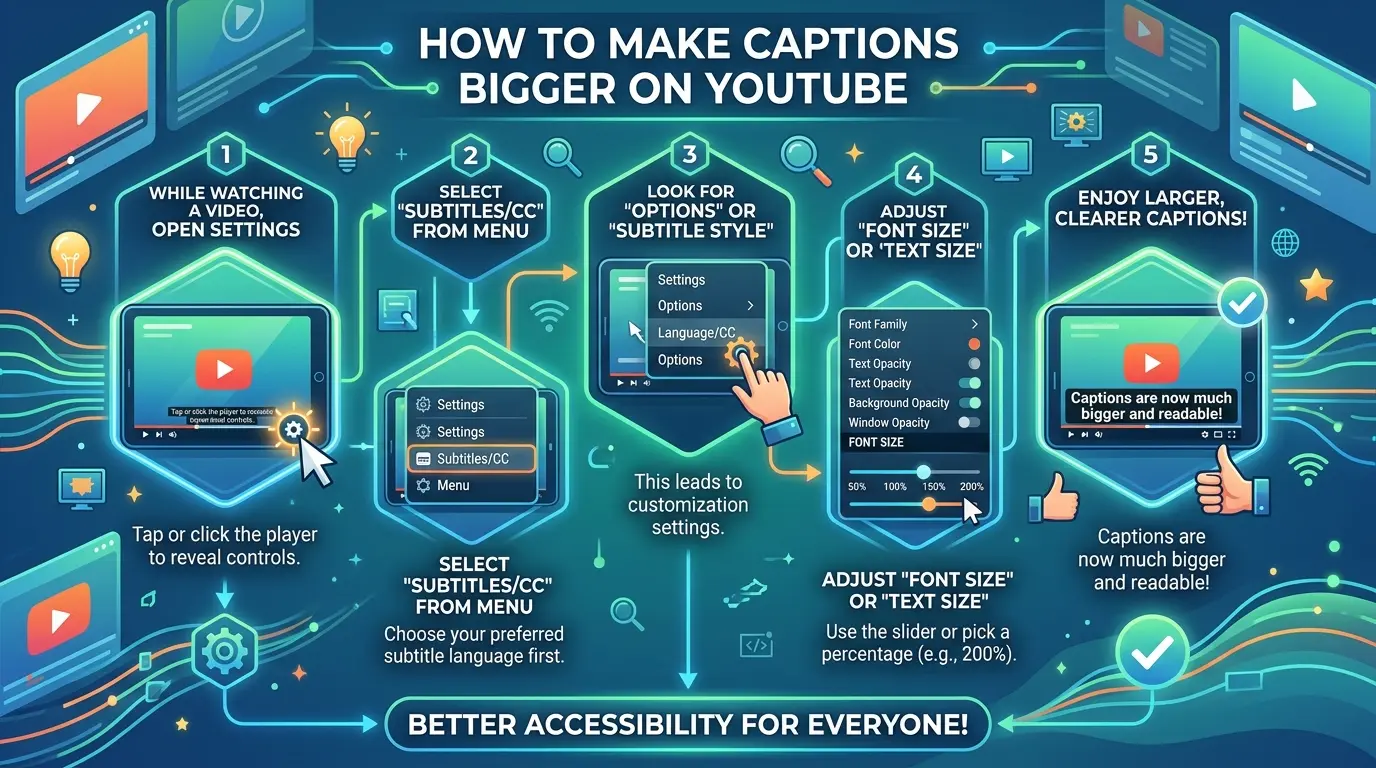
If you’ve ever squinted at a YouTube video trying to read captions, you’re not alone! YouTube captions (also called subtitles) are a powerful tool for accessibility, comprehension, and engagement but sometimes the text is too small. How to make captions bigger on YouTube simply means adjusting the size of the subtitles displayed in a video so they’re easier to read, whether on desktop, mobile, or smart TV.
In this guide, you’ll discover every way to adjust captions, plus tips for styling them, improving visibility, and enhancing your viewing experience.
Why YouTube Captions Matter 📝💖
-
Captions make videos accessible to viewers who are deaf or hard of hearing 🦻✨
-
They help viewers watch videos in quiet environments without sound 🤫💛
-
Bigger captions improve readability, reducing eye strain 👀💫
-
Accurate captions increase comprehension and retention of information 📚💖
-
They allow your content to reach global audiences with different languages 🌍💛
-
Engagement rises when viewers can follow along without distractions 💕📈
-
Captions support learning, especially for complex tutorials or lectures 📖✨
-
Better captions improve video SEO and watch time on YouTube ⏱️💖
-
They make videos shareable in public spaces where sound isn’t possible 💫💛
-
Highlighted or styled captions create a visually appealing experience ✨🖌️
-
Viewers are more likely to comment and interact if they can read captions 📝💖
-
Captions help convey tone, emotion, and emphasis in content 💕💫
-
They assist with multitasking, letting users watch while doing other tasks 💛👀
-
Properly sized captions accommodate all age groups 🧓👶💖
-
They reflect a creator’s commitment to inclusivity and accessibility 🌍✨
How to Make Captions Bigger on YouTube: Step-by-Step for Desktop 💻🖤
-
Open YouTube and select the video you want to watch 🎬
-
Click the Settings gear icon in the lower-right corner ⚙️
-
Select Subtitles/CC from the menu 📝
-
Click Options to access caption settings ✨
-
Locate Font Size and choose from Small, Medium, Large, or Extra Large 💖
-
Optionally, adjust Font Style for better readability 🖋️
-
Change Text Color for contrast with your video 🎨
-
Modify Background Color and Opacity for better visibility 🖤
-
Adjust Window Color and Opacity if the video background is busy 🎬💫
-
Preview your changes immediately on the video 🖥️
-
Refresh the video if changes aren’t applied right away 🔄
-
Save default settings for all future videos 💾
-
Combine font and background tweaks for maximum clarity 💛
-
Test on different videos to ensure consistency 🧪
-
Encourage viewers to try these settings if they struggle with small captions 💖
How to Make Captions Bigger on YouTube: Mobile Devices 📱✨
-
Open the YouTube app on iOS or Android 📲
-
Tap your profile icon in the top right corner 👤
-
Go to Settings > Captions 📝
-
Toggle Captions on if not already active ✅
-
Tap Caption Style to customize 🖌️
-
Adjust Font Size (Small, Medium, Large, Extra Large) 💖
-
Change Font Color for visibility 🎨
-
Modify Background Color and Transparency 💛
-
Preview captions while the video plays 👀
-
Test multiple styles to see what works best with different videos 🎬
-
Save your preferences as default for all future videos 💾
-
Use high-contrast combinations for busy or colorful videos 🌈
-
Adjust text shadow or window opacity for added clarity ✨
-
Consider enabling Bold Text for extra readability 💖
-
Share these tips with friends who struggle with small captions 💕
Accessibility Settings on YouTube for Bigger Captions ♿💫
-
YouTube integrates with device accessibility settings for captions 🖥️📱
-
Enable System Captions on iPhone/iPad via Settings > Accessibility > Subtitles & Captioning 🍏✨
-
On Android, navigate Settings > Accessibility > Captions and choose Text Size & Style 🤖💛
-
On Windows, adjust captions via Settings > Ease of Access > Closed Captions 💻🖤
-
On Mac, go to System Preferences > Accessibility > Captions 🍏💫
-
These settings can override YouTube app defaults for consistency across apps 🌐
-
Use High Contrast text colors for maximum readability 🌈💖
-
Bold fonts are preferred for viewers with visual impairments 💪👀
-
Caption background opacity helps separate text from busy video frames 🎬✨
-
Test captions with actual videos for real-world visibility 🖥️📲
YouTube Caption Styling: Fonts, Colors, and Backgrounds 🎨💖
-
Choose Sans-serif fonts for clean, modern readability 🖋️
-
Bold fonts make captions easier to read on small screens 💪
-
White or bright text works best on dark backgrounds 🌙✨
-
Black or dark text suits lighter video content ☀️💛
-
Semi-transparent backgrounds prevent video distraction 🎬💫
-
Increase window opacity to emphasize text over bright scenes 🖤
-
Experiment with yellow text for classic YouTube style 💛
-
Avoid decorative fonts that reduce readability ❌🖋️
-
Use consistent styling across multiple videos for branding 💕
-
Ensure colorblind-safe combinations (e.g., blue/yellow) 🌈
-
Subtle drop shadows help text stand out against complex visuals ✨
-
Test fonts on both mobile and desktop for universal clarity 💻📱
-
Combine font size with background adjustments for max impact 💖
-
Adjust line spacing to prevent crowding on longer captions 📝
-
Keep captions short per line for comfortable reading 👀
Seasonal and Occasion-Based Caption Adjustments 🌸🎄🎉
-
Festive videos: use bright, high-contrast text 🎄✨
-
Winter scenes: consider darker captions over snow ❄️💛
-
Summer content: bold fonts on light backgrounds ☀️🖤
-
Event coverage: match text color with branding or theme 🎨💖
-
Wedding or engagement videos: soft background opacity 💕✨
-
Birthday celebrations: playful fonts with readable contrast 🎂💛
-
Holidays: high visibility with themed emojis 🦃🎉
-
Anniversary clips: elegant fonts, easy-to-read sizing 💖💫
-
Travel vlogs: dynamic caption styling for bright landscapes 🌍✨
-
Cooking tutorials: bold captions for step-by-step clarity 🍳🖤
-
Fitness content: large, contrasting fonts for active scenes 💪💛
-
Gaming videos: bright or neon captions for fast movement 🎮💫
-
Tech tutorials: clean sans-serif for instructional clarity 💻✨
-
Music videos: rhythm-synced captions for lyric reading 🎵💖
-
Daily vlogs: consistent style for viewer comfort 🏡💛
Common Mistakes When Adjusting YouTube Captions ❌💔
-
Choosing fonts that are decorative but hard to read 🖋️
-
Using small default sizes for mobile users 👀
-
Ignoring contrast with video content 🎬💛
-
Overcrowding lines with too much text 📝
-
Forgetting to test on multiple devices 📱💻
-
Ignoring accessibility settings ♿✨
-
Using inconsistent styles across videos 💖
-
Not enabling captions in default settings ✅
-
Ignoring viewer feedback on caption readability 💬💫
-
Forgetting to save custom settings 💾💛
-
Over-relying on auto-generated captions without checking accuracy ⚠️
-
Using colors that clash with video themes 🌈💔
-
Ignoring subtitles for non-English audiences 🌍💖
-
Skipping opacity adjustments for busy backgrounds 🎬✨
-
Not updating captions after video edits ✨💻
Caption-Writing Psychology: Why Bigger Text Boosts Engagement 💖🧠
-
Larger captions reduce cognitive load and improve comprehension 🧠
-
Viewers retain information better with clear, readable text 💡
-
Emotional content paired with readable captions increases empathy 💕
-
Bold, high-contrast captions trigger attention faster 👀✨
-
Easy-to-read captions encourage longer watch time ⏱️
-
Viewers are more likely to comment when captions are visible 💬
-
Accessibility signals inclusivity, strengthening brand loyalty 🌍💖
-
Emotional triggers in captions work better when easily legible 💓
-
Subtle styling aligns with mood, tone, and content type 🎨💫
-
Bigger captions reduce frustration for visually impaired users ♿💛
-
Accurate captions help international audiences connect 💬🌏
-
Consistency in style reinforces familiarity and trust 💖
Engagement Tips for YouTube Captions 💬✨
-
Encourage viewers to toggle captions on with a friendly reminder 📝💖
-
Highlight key points in captions for shareable moments ✨💛
-
Add emoji sparingly to emphasize emotion 💕
-
Use captions to prompt CTAs like “Comment your thoughts below!” 💬💫
-
Ensure captions are synchronized with spoken content ⏱️
-
Break long sentences into multiple lines for readability 📝
-
Test captions across devices to ensure visibility 📱💻
-
Use contrasting text colors for mobile viewers 🌈💖
-
Include keywords subtly for SEO benefits 📈✨
-
Encourage viewers to share videos for maximum reach 💕💬
Hashtags for YouTube Caption Optimization #️⃣💖
-
#YouTubeCaptions
-
#Accessibility
-
#ClosedCaptions
-
#VideoTips
-
#CaptionSettings
-
#Subtitles
-
#YouTubeTutorial
-
#VideoAccessibility
-
#BiggerCaptions
-
#InclusiveContent
-
#CaptionStyle
-
#VideoEngagement
-
#ContentTips
-
#YouTubeGrowth
-
#ViewerFriendly
Frequently Asked Questions (FAQ) About Making YouTube Captions Bigger ❓💫
Q1: Can I make captions bigger on both desktop and mobile?
A1: Yes! You can adjust font size on YouTube’s desktop settings and mobile apps independently.
Q2: Do custom captions stay for all videos?
A2: Once saved in settings, your preferences usually apply across videos, but some device settings may override them.
Q3: Can I change caption color and background?
A3: Absolutely. YouTube allows font, color, and background adjustments for maximum visibility.
Q4: Do bigger captions help with accessibility?
A4: Yes, they make videos easier to read for viewers with visual impairments and increase engagement.
Q5: Are auto-generated captions editable?
A5: Auto-captions can be edited if you own the video, improving accuracy and readability.
Q6: Can I bold captions for better visibility?
A6: Yes, bold fonts are available in YouTube caption styling options.
Q7: Will changing caption size affect video SEO?
A7: Indirectly. Readable captions keep viewers engaged longer, which signals YouTube for higher ranking.
Q8: Can I use captions for multiple languages?
A8: Yes! YouTube supports multiple subtitle tracks, all customizable in size and style.
Q9: How do I ensure captions aren’t blocked by video content?
A9: Use background color, opacity, and high-contrast text to improve visibility.
Q10: Are there best practices for caption length per line?
A10: Keep captions under 32 characters per line and break long sentences for comfort.
Conclusion 💖✨
Making captions bigger on YouTube is more than a cosmetic tweak it’s a step toward accessibility, engagement, and viewer satisfaction. From desktop to mobile, adjusting font size, style, and background ensures every viewer can enjoy your content comfortably. Bigger, readable captions improve watch time, help your audience retain information, and make your videos inclusive for all.
So, don’t underestimate the power of well-styled captions increase their size, make them bold, and let every viewer feel included. Tag a friend who struggles with small captions, adjust your settings, and enjoy YouTube like never before! 🌟💖

Crafting powerful captions that turn simple ideas into engaging stories.