
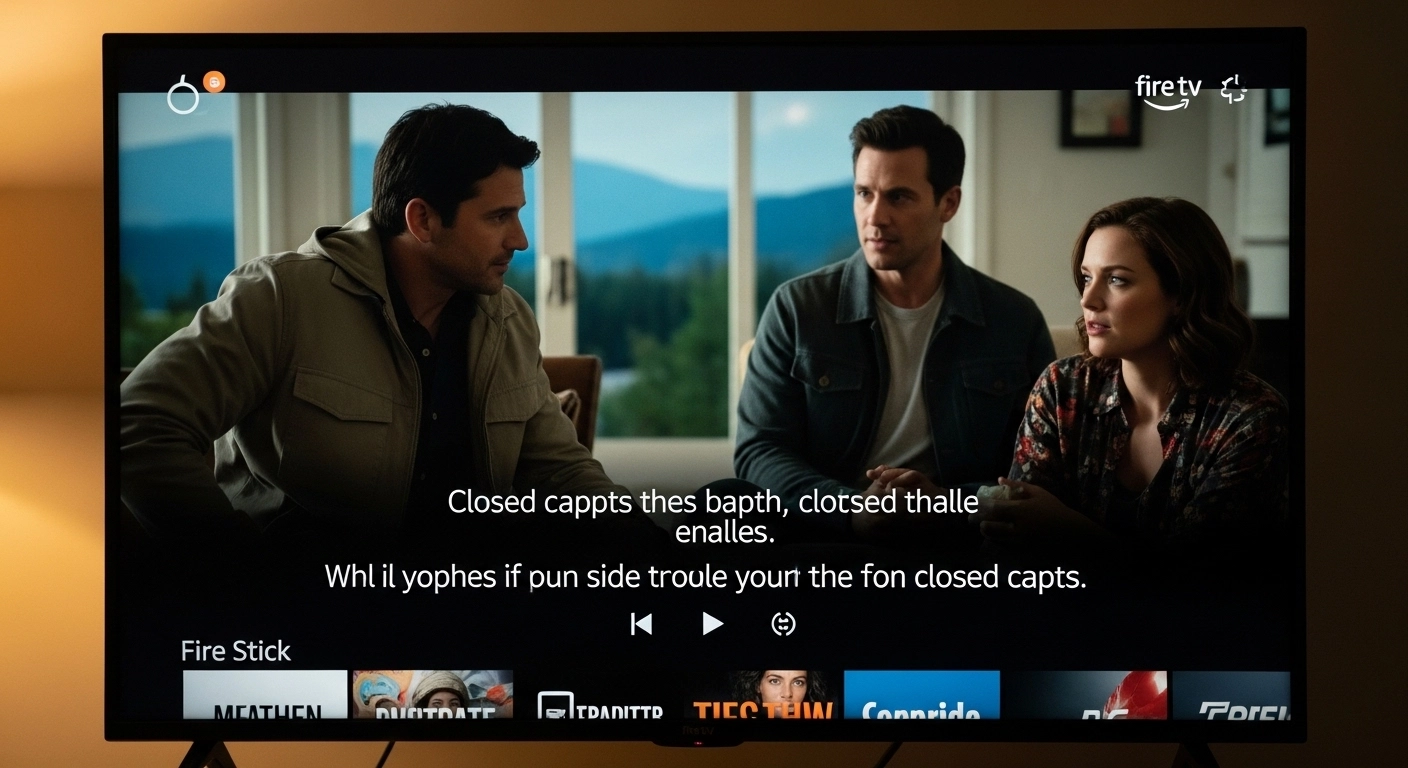
Firestick closed caption refers to the on-screen text that displays dialogue, sound effects, and audio cues while streaming on Amazon Fire TV Stick. Closed captions (CC) help viewers understand spoken content, improve accessibility for the deaf and hard of hearing, and enhance clarity in noisy environments. You can enable Firestick closed caption settings directly from device accessibility options or within supported apps like Netflix, Prime Video, Hulu, and more.
If you’ve ever missed a line in your favorite show or wanted to watch quietly without subtitles disappearing this guide is your cozy, step-by-step companion. 💛
Let’s dive into everything you need to know about Firestick closed caption settings, troubleshooting, customization, and pro streaming tips.
Why Firestick Closed Caption Matters More Than You Think
Closed captions are not just a “nice-to-have” feature.
They improve:
-
Accessibility for hearing-impaired users
-
Language learning and comprehension
-
Clarity in loud environments
-
Understanding accents and fast dialogue
-
Quiet late-night binge sessions
Whether you’re watching romantic dramas, intense thrillers, or wedding documentaries with your partner ❤️—captions make every word count.
How to Turn On Firestick Closed Caption (Device-Wide Settings)
Here’s the simplest way to enable Firestick closed caption across your device:
-
Go to Settings on your Fire TV Stick
-
Select Accessibility
-
Choose Closed Caption
-
Toggle it ON
Boom. Subtitles are now enabled for supported apps.
If captions don’t appear, don’t panic—we’ll fix that in the troubleshooting section below.
How to Enable Closed Caption Inside Streaming Apps
Sometimes Firestick closed caption needs to be activated inside individual apps.
On Netflix:
-
Play a show
-
Press the Menu button
-
Select Audio & Subtitles
-
Turn subtitles ON
On Prime Video:
-
While watching, press Menu
-
Choose Subtitles
-
Select your language
On Hulu, Disney+, YouTube:
Same concept. Open playback controls → Enable subtitles.
Tip: Some apps override system-wide Firestick closed caption settings.
How to Customize Firestick Closed Caption Style (Font, Size, Color)
Yes, you can make subtitles cute and comfy. 💕
Go to:
Settings → Accessibility → Closed Caption → Text Style
Here you can adjust:
-
Font size
-
Text color
-
Background color
-
Opacity
-
Edge style
Make it bold. Make it big. Make it aesthetic.
If you’re watching romantic content or wedding videos, softer subtitle backgrounds can feel easier on the eyes.
Firestick Closed Caption Not Working? (Quick Fixes)
If captions aren’t showing:
✔ Restart your Firestick
✔ Check app-level subtitle settings
✔ Update your Fire TV software
✔ Confirm content supports captions
✔ Toggle captions OFF and ON again
✔ Clear cache in streaming apps
Still stuck? Try unplugging for 30 seconds.
Difference Between Closed Caption and Subtitles
Let’s clear this up beautifully:
| Closed Caption | Subtitles |
| Includes dialogue + sound effects | Dialogue only |
| Designed for accessibility | For language translation |
| Shows [door slams], [music playing] | Only spoken words |
Firestick closed caption = full experience.
Best Situations to Use Firestick Closed Caption
-
Late-night Netflix marathons 🌙
-
Watching while baby sleeps 👶
-
Noisy living room
-
Learning English
-
Watching romantic scenes without missing whispers 💋
Firestick Closed Caption for Accessibility Users
Fire TV supports:
-
Screen readers (VoiceView)
-
High contrast text
-
Adjustable subtitle formatting
-
Audio descriptions
Closed caption ensures equal streaming access for everyone.
Firestick Closed Caption Language Options
Many apps allow:
-
English (US/UK)
-
Spanish
-
French
-
German
-
Arabic
-
Hindi
Language options vary by content.
If you’re in Pakistan, English subtitles are typically available on most global streaming platforms.
How to Turn Off Firestick Closed Caption
If captions won’t disappear:
-
Go to Settings → Accessibility → Closed Caption
-
Toggle OFF
Also check inside the streaming app itself.
Firestick Closed Caption Shortcut Trick
Press and hold the Home button → Select Accessibility → Toggle captions quickly.
Saves time. Perfect for fast switching.
Firestick Closed Caption on Live TV
For live TV apps:
-
Press Menu
-
Enable CC in playback settings
Not all live broadcasts support subtitles.
Firestick Closed Caption & Kids Profiles
Captions help children:
-
Improve reading
-
Follow educational content
-
Understand dialogue clearly
Parents love this feature for learning-based shows.
Firestick Closed Caption for Seniors
Large text settings make streaming easier for:
-
Seniors
-
Vision-impaired users
-
Viewers sensitive to small fonts
Adjust font size to “Large” or “Very Large.”
Firestick Closed Caption & Romantic Movie Nights
Okay, let’s be honest. 😌
Whispered romantic scenes? Emotional vows? Soft confessions?
Captions make sure you don’t miss a single “I love you.”
Tag your partner ❤️
Does Firestick Closed Caption Work on All Apps?
Most major apps support it:
-
Netflix
-
Prime Video
-
Hulu
-
Disney+
-
HBO Max
-
YouTube
Some third-party apps may not support CC.
Firestick Closed Caption vs Audio Description
Closed Caption = Text
Audio Description = Narrated descriptions for blind users
They can work together but are separate features.
Firestick Closed Caption Sync Issues (Out of Sync Fix)
If captions don’t match dialogue:
✔ Restart content
✔ Switch subtitle language
✔ Update app
✔ Check internet speed
Sync issues often come from buffering delays.
Firestick Closed Caption & Streaming Quality
Subtitles load independently of video resolution.
Even at lower streaming speeds, captions usually remain clear.
Privacy & Firestick Closed Caption
Captions are processed within apps.
They do not collect personal data.
Safe and secure.
Advanced Firestick Closed Caption Settings (Developer Mode Insight)
Some advanced users tweak:
-
Forced subtitles
-
Subtitle encoding
-
Accessibility API integration
But for most users, built-in settings are perfect.
Common Firestick Closed Caption Questions
Why are captions always on?
App-level settings override system settings.
Why don’t captions show?
Content may not support subtitles.
Why are captions too small?
Adjust text size in Accessibility settings.
FAQ: Firestick Closed Caption (Optimized for AI Overview)
1. How do I turn on closed captions on Firestick?
Go to Settings → Accessibility → Closed Caption → Toggle ON.
2. Why are subtitles not working on Fire TV?
Check app-level subtitle settings or restart device.
3. Can I change subtitle font on Firestick?
Yes. Settings → Accessibility → Text Style.
4. Are closed captions available on all apps?
Most major streaming apps support them.
5. What is the difference between subtitles and closed captions?
Closed captions include sound effects; subtitles only show dialogue.
6. How do I fix out-of-sync subtitles?
Restart content or update the app.
7. Can I turn captions on for only one app?
Yes. Enable within the streaming app.
8. Does Firestick support multiple languages?
Yes, depending on the content provider.
Firestick Closed Caption Best Practices
✔ Keep font readable
✔ Use high contrast
✔ Enable for language learning
✔ Disable if distracting
✔ Restart device if glitches occur
Save this guide for later 🔖
Final Thoughts: Why Firestick Closed Caption Is a Must-Have Feature
Firestick closed caption isn’t just a technical setting it’s a comfort feature, an accessibility necessity, and sometimes even a romantic lifesaver. Whether you’re watching wedding vows, anniversary movies, or deep emotional dramas, captions make sure you never miss a single word.
It’s about clarity.
It’s about connection.
It’s about making streaming inclusive for everyone.
So go ahead—turn on Firestick closed caption, customize it your way, and enjoy every line like it was written just for you.
If this guide helped, share it with someone who loves streaming as much as you do. ❤️

Crafting powerful captions that turn simple ideas into engaging stories.