
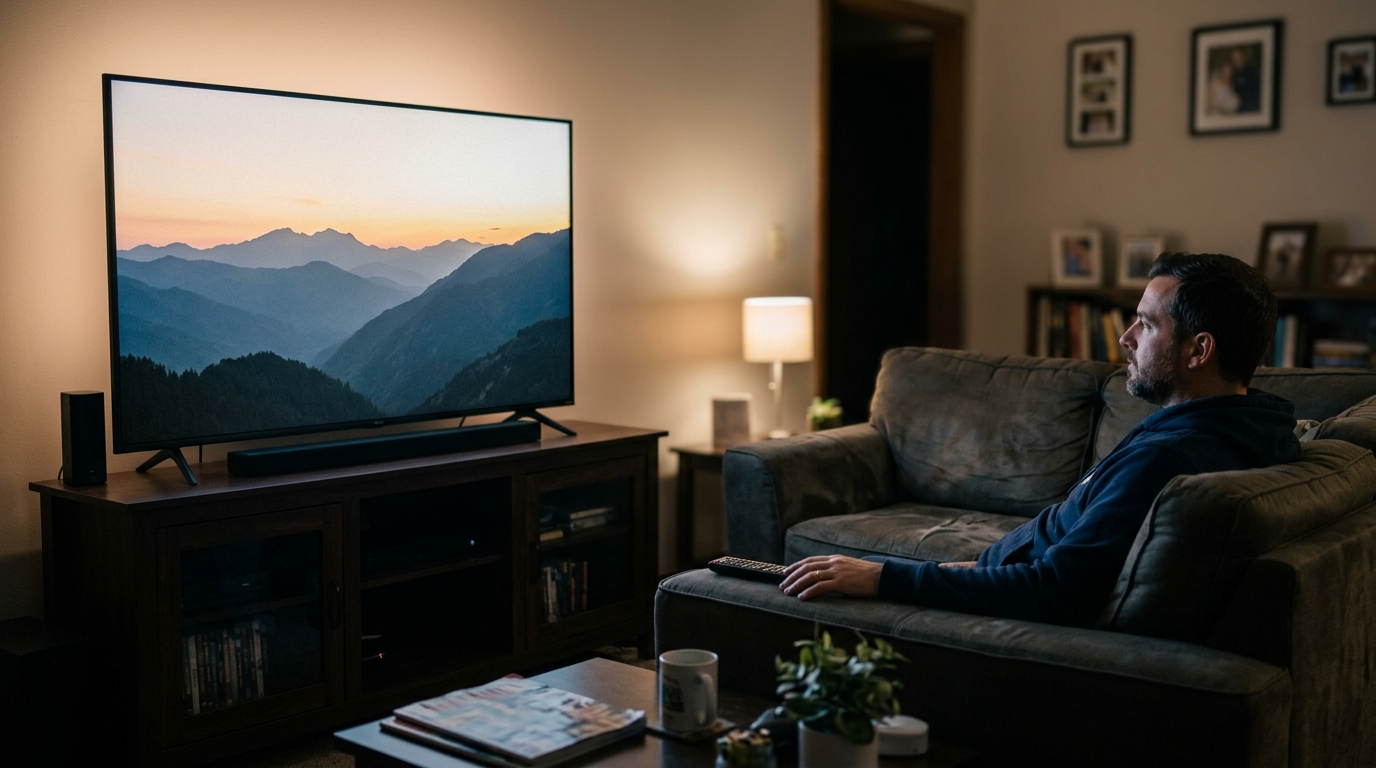
How to turn closed captioning off means disabling the text subtitles that appear on your screen during videos or TV shows when you don’t want them displayed. This can be done through settings on your TV, streaming app, movie player, mobile device, or computer usually within the Accessibility, Audio, or Caption menu. Understanding how to turn CC off gives you more control over your viewing experience.
Closed captions can be super helpful especially for accessibility, noisy environments, or people learning a new language but sometimes you just want a clean screen.
😌 Whether you’re watching on your TV, phone, laptop, or streaming service, this cozy, thorough guide walks you through how to turn closed captioning off everywhere you might encounter it. Let’s dive in! 💖👇
📱 1. How to Turn Closed Captioning Off on iPhone & iPad
If you love streaming videos or watching shows on your iPhone or iPad, here’s how to turn closed captioning off:
20 Easy Steps to Disable CC on iOS
-
Open Settings 🛠️
-
Tap Accessibility 🧠
-
Select Subtitles & Captioning 🎬
-
Toggle Closed Captions + SDH OFF 🚫
-
Enjoy cleaner video playback 📺
-
For specific apps, check in‑app settings ⚙️
-
In YouTube, tap the CC icon to toggle OFF ❌
-
In Netflix app, go to audio & subtitles and choose “Off” 🎧
-
Hulu has a similar subtitle toggle 🌀
-
Disney+ lets you adjust within playback 👆
-
Amazon Prime shows CC settings on the player bar 🎞️
-
Restart video after changing settings 🔁
-
Double‑check Accessibility if captions stay ON 🕵️♀️
-
Update iOS if options look different 🔄
-
Use triple‑click Accessibility shortcut for quick access ✨
-
Use the Control Center for quick CC toggle 🛎️
-
Swipe down and long‑press video controls 🎮
-
Look for Speech option inside Accessibility 📢
-
For FaceTime, your captions control is separate 📞
-
You’re free from captions — yay! 💃
📺 2. How to Turn Closed Captioning Off on Android Devices
Every Android can be a little different — but most use these steps:
How to Remove Captions on Android
-
Open Settings ⚙️
-
Go to Accessibility ♿
-
Tap Captions or Closed Captions 🅲
-
Switch CC OFF 🚫
-
Confirm changes ✨
-
For YouTube app, tap CC inside video player ❌
-
Netflix/Disney+/Hulu all have in‑app CC toggles 🎞️
-
Samsung phones: Settings > Accessibility > Hearing 🦻
-
Turn off CC in video players manually 🎧
-
Try long‑press CC icon if available 👆
-
Check Language & Input if captions keep returning 🌐
-
Update your Android version 🔄
-
Restart the app after changes ⏩
-
Adjust Media volume settings 🔊
-
Toggle Video subtitles separately 🎥
-
Turn off Live Caption for system‑wide CC 🔇
-
Check Accessibility shortcut bindings 🔁
-
Remember some streaming apps override phone settings 🧠
-
Visit Help in your app if CC persists 📘
-
Breathe — finally no captions! 😄
📺 3. How to Turn Closed Captioning Off on Smart TVs (All Brands)
Self‑test: You’re watching your favorite show but the text keeps popping up. No worries! Every Smart TV gives you control:
Smart TV CC Off Menu Tips
-
Hit Menu on your remote 📺
-
Select Settings ⚙️
-
Tap Accessibility 🧠
-
Choose Closed Captioning 🅲
-
Turn it OFF 🚫
-
On some TVs, go to Audio & Subtitles 🎧
-
Samsung: Accessibility > Caption Settings 🦋
-
LG: All Settings > Accessibility > Caption 👑
-
Sony: Display & Sound > Caption 📜
-
Vizio: CC button on remote 📡
-
Roku: Settings > Accessibility > Captions 🆗
-
Change Caption Style if you don’t want OFF (optional) 🎨
-
Save & exit 👍
-
Restart TV if changes don’t stick 🔁
-
Update software if menus differ 🔄
-
For live TV, CC may live in broadcast settings 📡
-
Cable box may have its own subtitle setting 🌐
-
Game consoles often have CC too 🎮
-
Streaming stick may override TV settings 🪄
-
Enjoy a caption‑free screen! 🥳
🖥️ 4. How to Turn Closed Captioning Off on Laptop & Desktop
Mac (macOS)
-
Apple menu 🍎
-
System Settings ⚙️
-
Accessibility 🧠
-
Captions 🅲
-
Turn Off ❌
-
Close settings and refresh video 🔄
-
For YouTube, use in‑player CC toggle 🔤
-
Netflix app/website has subtitle options 🎞️
-
Check video player controls 🎮
-
Restart for system‑wide effect 🔁
Windows PC
-
Open Settings 🛠️
-
Go to Ease of Access ♿
-
Select Closed Captions 🅲
-
Turn OFF ❌
-
Confirm Audio/Video player settings 🎧
-
YouTube CC toggle may be separate 🔡
-
Browser CC vs System CC differ 🕸️
-
Update Windows if nothing changes 🔄
-
Restart your browser 🔁
-
Have fun without captions! 🎉
🎬 5. How to Turn Closed Captioning Off on Streaming Apps
Most apps have their own subtitle controls:
Netflix
-
Open video 👍
-
Click Audio & Subtitles 🎧
-
Select Off 🚫
-
Resume play ▶️
YouTube
-
Play video 📹
-
Tap CC icon ❌
-
Captions disappear ✨
Disney+
-
Pause video ❚❚
-
Subtitles icon 🔤
-
Choose Off 🚫
Hulu
-
Inside video player 👁️
-
CC toggle OFF 🚫
Amazon Prime
-
Playback CC button 🎞️
-
Select Off 🚫
Pro tip: Apps often remember your preference, so you usually only have to do this once per device 😊
🤔 6. Why You Might Want to Turn Closed Captioning Off
Understanding “how to turn closed captioning off” is more than clicking a button — it’s about wanting a better viewing experience.
Here are common reasons people choose to turn captions off:
-
They find captions distracting 😵
-
They want a cleaner screen aesthetic 🖼️
-
They don’t need subtitles in their language 🌍
-
Captions may cover important visuals ❌
-
Background noise isn’t an issue 🎧
-
They prefer immersive audio 🤗
-
They’re watching something they already know 📼
-
Crowded text makes them anxious 😬
-
They’re streaming in a quiet environment 🌙
-
Captions sometimes lag behind audio 🕒
-
They want more screen space 👀
-
Subtitles can misinterpret slang 😅
-
CC fonts may be hard to read 🆎
-
Some video content auto‑defaults to CC 🌀
-
They simply prefer silence — or speech only 🤫
Whether you love captions or prefer them off, knowing how to control them gives you power over your screen experience! 💪
🧠 7. Accessibility vs. Closed Captioning — What’s the Difference?
Understanding how to turn closed captioning off also means understanding what captions are for:
| Feature | Closed Captions (CC) | Subtitles |
| Includes sound cues? | Yes 🔉 | No 🎧 |
| For deaf/hard‑of‑hearing | Yes ❤️ | Optional 🌈 |
| Same language text? | Yes 🅰️ | Usually ✔️ |
| Foreign language translation? | Sometimes ✨ | Yes 👍 |
✨ Closed captions include descriptions like [door creaks], while subtitles focus on dialogue only. You may want CC for accessibility, or you may want them off for a cleaner aesthetic — and that’s totally okay! 💖
💡 8. Common Mistakes When Trying to Turn Closed Captioning Off
If captions don’t go away, you’re not alone. Here are the most common hurdles — and how to fix them:
🚫 Not changing both system + app settings
➡️ Some apps override system CC, so turn it off everywhere.
🚫 Confusing subtitles with captions
➡️ Subtitles are different; turn both off if your app separates them.
🚫 Streaming sticks vs TV settings
➡️ Roku/Fire Stick captions can stay ON even with TV set off.
🚫 Old software menus
➡️ Update your device to see the correct settings.
🚫 Leftover caption profiles
➡️ Some apps create profiles that auto‑turn CC back ON.
The trick? Be methodical and check all layers: device → app → player controls. 💕
📊 9. How to Turn Live Captioning Off (System‑Wide)
Many devices now offer Live Caption — automatic captions for any audio:
Android Devices
-
Settings ⚙️
-
Sound 🔊
-
Live Caption 🔤
-
Toggle OFF 🚫
Chrome Browser
-
Open Chrome 🌀
-
Go to Settings ⚙️
-
Accessibility ♿
-
Turn off Live Caption 🔇
Live Caption is neat, but most of us don’t want it all the time.
🧠 10. Tips for a Smoother Caption Experience
Even if you’re turning closed captioning off a lot, sometimes you want them back. Here’s how to make toggling easy:
✨ Use accessibility shortcuts — triple‑click buttons on phones
✨ Save profile preferences in apps
✨ Update apps & devices regularly
✨ Check for hidden CC buttons on remotes
✨ Restart videos after changing settings
✨ Use keyboard shortcuts on computers (e.g., C on YouTube)
📣 11. Engagement CTA Section (Just for Fun 😂)
If this helped you:
➡️ Tag a friend who needs CC off! 💛
➡️ Save this for your next movie night! 🍿✨
➡️ Comment your device & we’ll help you customize! 🛠️❤️
❓ 8–12 FAQs About How to Turn Closed Captioning Off
1. Why can’t I turn closed captioning off?
Often because captions are controlled by the video player itself, not your device settings. Try disabling within the app’s subtitle menu.
2. Does turning CC off improve video quality?
Not directly — but it gives you more screen space and LESS distraction.
3. Do captions stay off forever once I turn them off?
Many apps remember your preference, but some reset per video.
4. Are subtitles the same as closed captioning?
Not exactly. Subtitles show dialogue, captions also include sound cues.
5. How do I turn off CC on YouTube?
Click or tap the CC icon in the video player and choose Off.
6. My TV captions won’t go off — what do I do?
Check both TV system and cable/streaming device settings.
7. Can I turn off closed captioning on live TV?
Yes — in your broadcast settings or via remote caption button.
8. Does turning off CC affect accessibility features?
No — just captions. Other features like screen readers stay active.
9. How do I turn off auto‑generated captions?
In apps like YouTube, toggle Auto‑generated CC off in player settings.
10. Is there a universal remote button for captions?
Some remotes have a CC or Subtitle button — press it!
🎀 Conclusion
Learning how to turn closed captioning off gives you the freedom to tailor your viewing experience clean, distraction‑free, and just how you love it. From phones to laptops, TVs to streaming services, this guide walks you through every screen you use. Closed captions serve amazing purposes, but turning them off is just as valid when you want clarity, immersion, and visual elegance. 🌸💖
Whether your goal is a minimalist screen during cozy evenings, a distraction‑free movie night, or simply mastering your tech, you now have all the tools and insights you need. And if you ever want captions back? You’ll know exactly where to find them. 💫
Happy watching caption‑free if you wish! 😘🍿📺

Turning everyday moments into catchy, relatable captions.