
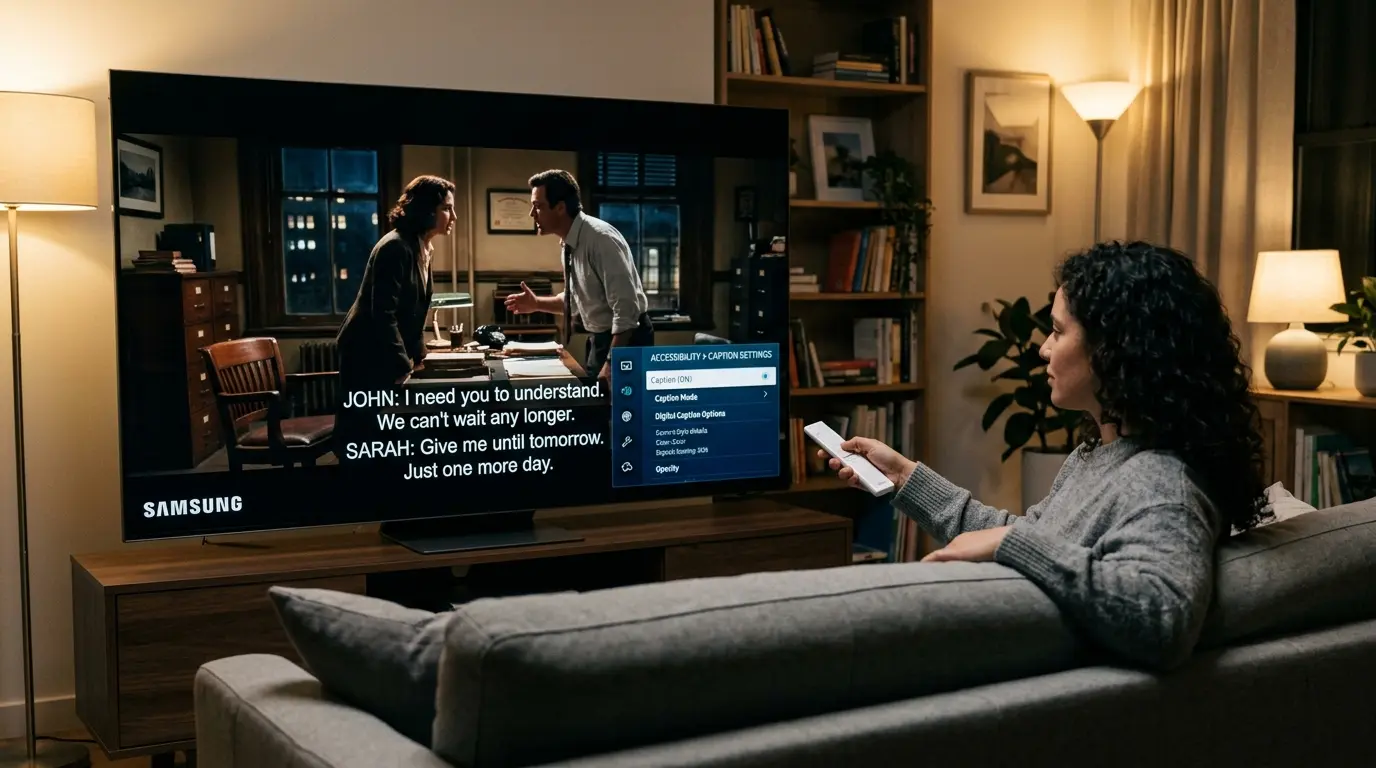
How to turn off captions means disabling on‑screen text that displays speech or audio descriptions for media such as videos, TV shows, movies, streaming apps, or live broadcasts so that the captions no longer appear while you watch.
Captions are helpful for accessibility and clarity, but sometimes you just want them off whether you’re watching on your phone, laptop, TV, social platform, or media app. This guide explains how to turn off captions on popular devices, software platforms, and apps step by step so you can watch the way you prefer.
📱 How to Turn Off Captions on iPhone & iPad
Captions on Apple mobile devices show up in videos, FaceTime, streaming apps, or while using accessibility features. Here’s how to turn them off:
❗ Turn Off Captions for All Videos (iOS Settings)
-
Open Settings
-
Tap Accessibility
-
Tap Subtitles & Captioning
-
Turn Closed Captions + SDH to Off
💡 This affects built‑in videos and some apps that follow iOS caption settings.
🎬 Turn Off Captions in Streaming Apps (Individually)
For most apps (Netflix, Disney+, YouTube, Hulu, Prime Video):
• Start the video →
• Tap CC / Subtitles icon →
• Select Off
Each app respects its own caption controls even if your device settings are off.
🤖 How to Turn Off Captions on Android Devices
Android phones and tablets can show captions from accessibility features or inside media apps.
🔕 System‑Wide Captions
-
Open Settings
-
Tap Accessibility
-
Select Captions / Hearing Enhancements
-
Turn Captions Off
📺 App‑Specific Captions
While playing a video:
• Tap CC / Subtitles icon
• Choose Off
This applies to YouTube, Netflix, and similar apps.
💻 How to Turn Off Captions on Windows
Captions can appear in apps and in Windows videos.
🖥 System Captions & Accessibility
-
Open Settings
-
Go to Ease of Access
-
Click Closed captions
-
Toggle Off
🌐 Turn Off Captions in Browsers
If captions show up in a browser player (like YouTube):
• Click CC icon in video player
• Switch Off
Some sites have separate caption settings.
🍎 How to Turn Off Captions on Mac
Whether you use Safari, Chrome, or media players:
🖥 macOS Captions Settings
-
Go to Apple Menu → System Settings
-
Choose Accessibility
-
Click Subtitles & Captioning
-
Turn Off Closed Captions
🎥 App & Browser Captions
In video players:
• Click CC / Subtitles icon → Off
📺 How to Turn Off Captions on Smart TVs
Smart TVs often have caption or subtitle controls built into menus. The exact steps vary by brand.
🔹 Samsung TV
-
Press Menu
-
Go to Settings
-
Select Accessibility
-
Find Caption / Subtitles
-
Turn Off
🔹 LG TV
-
Press Settings
-
Choose Accessibility
-
Select Caption
-
Set to Off
🔹 Sony TV
-
Press Home
-
Choose Settings
-
Select Captions
-
Turn Off
🔹 Roku TV
-
Press Home
-
Scroll to Settings
-
Choose Accessibility
-
Select Captions
-
Off
📌 For each Smart TV, you might also find caption settings while you’re watching a channel or streaming app usually via a remote’s Menu / Options button.
📺 How to Turn Off Captions on Streaming Devices
🔸 Roku
While watching:
• Press * button
• Scroll to Closed Captions
• Set Off
Or through Settings → Accessibility → Captions Off
🔸 Amazon Fire TV Stick
-
Go to Settings
-
Select Accessibility
-
Choose Closed Captioning
-
Turn Off
🔸 Apple TV
-
Open Settings
-
Go to Accessibility
-
Choose Subtitles & Captioning
-
Toggle Off Closed Captions
📱 How to Turn Off Captions in YouTube
Whether you’re on phone, tablet, or computer:
On Mobile (App)
-
Play the video
-
Tap the screen
-
Tap CC
-
Choose Off
On Desktop
-
Click CC icon
-
Select Off
💡 YouTube may auto‑generate captions for some content but turning them off prevents display.
📺 How to Turn Off Captions on Netflix
On Mobile & Tablet
-
Play a show or movie
-
Tap the screen
-
Choose Audio & Subtitles
-
Set Subtitles Off
On Smart TV or Device
-
While playing, press Down / Menu
-
Navigate to Subtitles
-
Choose Off
Netflix remembers your last choice for future playback.
📹 How to Turn Off Captions on Disney+
-
Play content
-
Select Audio & Subtitles
-
Choose Off under subtitles
Disney+ has a quick toggle during playback.
📱 How to Turn Off Captions on Instagram Videos
Instagram Reels and stories can show captions when auto‑generated.
For Reels & Stories You Watch
• Tap CC icon → Off
For Your Own Posts
If auto captions are added via sticker:
-
Edit your reel
-
Tap the Captions sticker
-
Delete the sticker
📱 How to Turn Off Captions on TikTok
Captions may be auto‑generated.
-
Play the video
-
Tap ··· or CC
-
Choose Hide captions
If you added captions yourself with text or sticker, you must edit the post to remove it.
💻 How to Turn Off Captions on Facebook Video
On Desktop
• Click CC icon during playback → Off
On Mobile App
• Tap video → Captions → Off
Facebook auto‑generated captions respect this toggle.
📺 How to Turn Off Captions on Hulu
-
During playback, press OK / Select
-
Choose Settings
-
Turn Subtitles Off
You may need to access captions through the remote’s on‑screen menu.
📺 How to Turn Off Captions on Prime Video
-
Play your video
-
Press Menu / Subtitle
-
Choose Subtitles Off
Amazon Prime Video lets you adjust captions while watching.
🧠 Why Do Captions Appear Automatically?
Understanding why captions turn on can help you prevent them:
📌 Common Causes
• Accessibility settings enabled on your device
• Auto‑generated captions by apps (e.g., YouTube)
• App‑specific caption preferences stored in your account
• TV or streaming device defaults to captions for hearing accessibility
Turning them off at the correct setting level fixes the issue.
🧠 Accessibility vs. Captions: What’s the Difference
Closed Captions (CC):
Text that matches spoken words and sounds (e.g., “[doorbell rings]”) that you can turn on/off.
Subtitles:
Text of spoken dialogue only may be part of video by default.
Accessibility Captions:
May include extra descriptions for visually or hearing‑impaired users.
Turning off captions will hide text during playback unless they’re burned‑in.
❗ Caption Mistakes People Make & How to Fix Them
Common Mistake #1:
Assuming captions are off in the app because they’re off systemwide.
✔️ Fix: Turn them off in both the app and device settings.
Common Mistake #2:
YouTube auto‑reopens captions each video.
✔️ Fix: Turn off directly in the YouTube player.
Common Mistake #3:
Captions stick after app updates.
✔️ Fix: Check caption settings again apps reset defaults sometimes.
🪄 Pro Tips for Turning Off Captions Easily
✨ Shortcut for Smart TVs: Look for a CC button on your remote.
✨ Save preferences: Many apps remember your last caption setting.
✨ Restart the app/device: If captions don’t turn off immediately.
📊 Why Turning Off Captions Can Improve Your Viewing Experience
• Less screen clutter
• Better immersion in visuals
• More enjoyable for fluent listeners
• Prevents auto‑generated text from covering visuals
Some users prefer captions off for cinematic or aesthetic reasons it’s personal preference.
🔧 When You Shouldn’t Turn Off Captions
Captions are essential when:
✔️ You’re in a noisy environment
✔️ You have hearing difficulties
✔️ You’re watching in a non‑native language
✔️ You need clarity for spoken dialogue
Accessibility features exist to support users turning them off is just a preference, never a requirement.
📌 Quick Recap: Best Places to Turn Off Captions
| Platform | Where to Turn Off |
| iPhone / iPad | Settings → Accessibility → Subtitles & Captioning |
| Android | Settings → Accessibility → Captions |
| Windows | Settings → Ease of Access → Closed Captions |
| Mac | System Settings → Accessibility → Subtitles |
| YouTube | CC toggle in player |
| Netflix | Audio & Subtitles menu |
| Smart TV | Accessibility / Captions menu |
| Hulu | Video settings while playing |
| CC icon / Edit reel captions | |
| TikTok | Hide captions in playback or edit post |
❓ Frequently Asked Questions (FAQ)
1. Why don’t captions turn off on YouTube?
Sometimes YouTube auto‑generates captions based on language. Make sure you turn them off using the CC button in the video rather than device settings.
2. Do captions use data?
No captions are text, so they use minimal data compared with video.
3. Can I turn off captions permanently?
Many apps remember your last caption setting, but some reset defaults after updates. Check caption menus again if they reappear.
4. Are captions the same as subtitles?
Not always. Captions may include non‑speech audio information; subtitles are usually speech‑only text.
5. How do I turn off captions on Netflix on my phone?
While the video plays, tap the screen → Audio & Subtitles → Off.
6. Why do my TV captions keep turning back on?
It might be your TV’s default setting. Turn them off in the main Accessibility menu, not just during playback.
7. Can captions be turned off on every app?
Most apps allow it, but some may have default settings you adjust inside that specific app.
8. Do captions affect video quality?
No captions overlay text and don’t change video resolution or quality.
❤️ Final Thoughts
Learning how to turn off captions gives you control over your viewing experience. Whether you’re watching a movie, scrolling through social media, or streaming your favorite show, turning captions off is quick once you know where to look in system settings, video player menus, or accessibility options.
Captions are powerful for accessibility and understanding, but choosing when to enjoy content without them is your personal preference. With the steps above, you can watch with clarity and comfort, every time.
Now you know exactly how to turn off captions on your devices, apps, and platforms and that means more time enjoying what you love.

Turning everyday moments into catchy, relatable captions.