
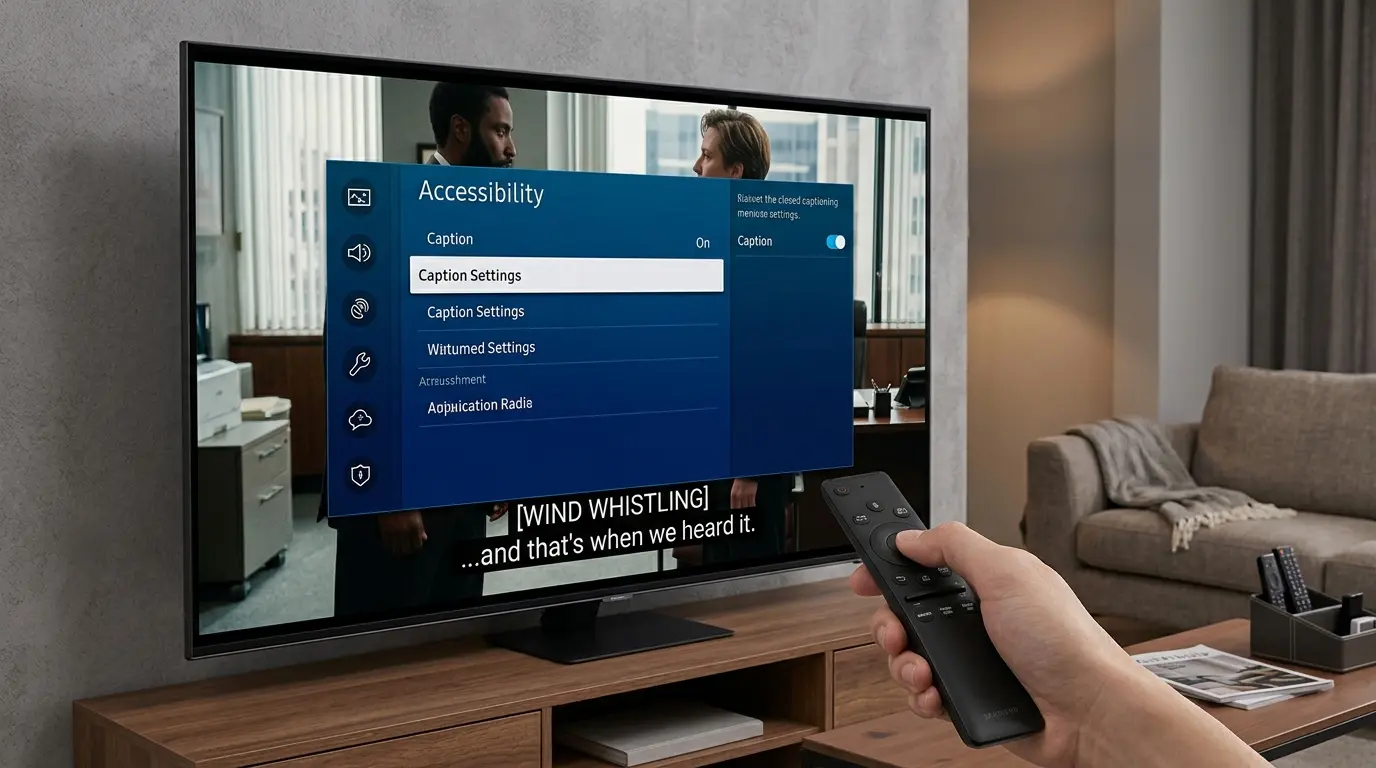
To turn off captioning on a Samsung TV, access the Settings menu, go to Accessibility or Caption options, and toggle Closed Captions (CC) or Subtitles off. This stops on‑screen text for dialogue and audio cues, giving you a clear picture without text overlay.
Captions are helpful when you need them — but sometimes they clutter your screen, interrupt a dramatic scene, or distract from the visuals. If you’re here, you want clear picture time without captions — and I’ve got the friendly, step‑by‑step guidance you need.
This article walks you through all the ways to turn off captioning on a Samsung TV (including by model), how to turn captions back on when you need them, and what to do if those stubborn captions won’t go away. I’ll also explain caption types, accessibility options, and answers to common questions.
Let’s get your screen just the way you like it!
🧠 Why Turn Off Captioning on Samsung TV?
Even though captions are valuable, there are reasons you might want them off:
-
📺 Enjoy the full picture without text clutter
-
🎬 Get immersed in movies and shows
-
🔉 You don’t need dialogue support
-
📱 Watching content in a familiar language
-
👀 You find captions distracting
📋 Captioning vs. Subtitles: What’s the Difference?
-
Captions (CC) — Text for dialogue and sound cues (e.g., “door creaks,” “music swells”).
-
Subtitles — Text for spoken words only, typically in the same language or translated.
Both may appear on Samsung screens, and you can turn them off separately in menus.
🛠️ How to Turn Off Captioning on Samsung TV (Standard Method)
🪄 Works for most Samsung TVs (Tizen OS)
-
Press Menu or Home on your Samsung remote
-
Go to Settings
-
Select General
-
Choose Accessibility
-
Select Caption or Closed Captioning
-
Toggle Off
💡 If your remote has a CC button, you can press it once or twice to cycle captions off.
📺 How to Turn Off Captions on New Samsung Smart TVs
Samsung updated menus in recent models:
-
Home Button
-
Settings → All Settings
-
General → Accessibility
-
Caption Preferences
-
Closed Captions → Off
📱 How to Turn Off Captions When Casting to Samsung TV
If you’re casting from an app (YouTube, Netflix, Prime Video):
-
Turn off subtitles inside the app first
-
Then check the TV caption setting as described above
Casting apps often carry their own subtitle settings separate from the TV.
🍿 How to Turn Off Captions for Streaming Services
Streaming apps may override TV captions:
-
Netflix: Settings → Audio & Subtitles → Turn off
-
YouTube: CC button on player → Off
-
Amazon Prime: Subtitles → Off
(Controls are within the app during playback)
📺 Quick Remote Shortcut
Many Samsung remotes let you press:
-
Info → navigate to subtitle options
-
Tools (on some remotes) → Subtitle/Caption toggle
This varies by remote model.
🧩 If Captions Won’t Turn Off
Try these fixes:
-
Restart the TV
-
Update system software
-
Check app subtitle settings
-
Reset Accessibility settings
-
Factory reset (last resort)
🔁 How to Turn Captions Back On
Follow the same steps — just toggle On instead of Off.
🧠 Caption Accessibility Features
Samsung TVs include:
-
Caption Style (font size, color)
-
Background opacity
-
Character edge styles
These let you customize captions when you do want them.
🔍 Caption Options by TV Model
Because menus vary, here are quick guides:
🖥️ Samsung QLED / UHD Models
-
Home
-
Settings → General
-
Accessibility
-
Caption
-
Off
📺 Older Samsung Smart TVs
-
Menu
-
System
-
Accessibility
-
Caption Settings
-
Off
📡 Samsung LED TV
Same path, sometimes called Subtitles instead of Captions.
🔧 Using Voice Control (Bixby)
If your TV supports voice:
🗣️ “Turn captions off”
Should toggle them off instantly.
📱 Using SmartThings App
-
Open SmartThings
-
Select your TV
-
Go to Settings
-
Access Accessibility
-
Turn off captions
🧑💻 Troubleshooting by Scenario
📌 App Shows Captions Only
-
Turn off inside the app’s subtitle menu
📌 Captions Return After Change
-
Save settings, then restart TV
📌 Foreign Language Shows
-
Some services auto‑enable subtitles; check the app
🤔 Why Captions Keep Appearing
Some reasons:
-
App override
-
Default system setting
-
Accessibility setting enabled
-
Remote shortcut toggles
Check both system and app settings.
🧠 Expert Tips for Samsung Caption Control
-
Set preferred caption style once — Samsung remembers it
-
Update firmware to fix bugs
-
Disable Accessibility entirely if you don’t use any features
📊 FAQ — Samsung TV Captioning (Quick Answers)
1. Why are captions showing even when turned off?
Sometimes the app you’re watching forces subtitles — turn them off in the app too.
2. Where are captions in Samsung TV settings?
Usually under Settings → General → Accessibility → Caption/Closed Captioning.
3. Can I customize caption style?
Yes — size, color, background opacity, and edge style.
4. Do all Samsung TVs support captions?
Yes, most have captioning and subtitle options.
5. What’s the difference between subtitles and captions?
Captions include sound cues; subtitles are dialogue only.
6. Can voice remote turn captions off?
Yes—commands like “Turn captions off” work on many models.
7. Do streaming apps have separate settings?
Yes — always check Netflix, YouTube, Prime Video settings.
8. How to reset caption settings?
Go to Accessibility and find Reset or Restore defaults.
📌 Captioning Best Practices
-
Turn captions off when you don’t need them
-
Use custom styling if you rely on captions
-
Check both TV and app settings
✨ Conclusion — Enjoy Your Screen Without Captions
Turning off captioning on your Samsung TV gives you a cleaner viewing experience and lets the picture shine. Whether you’re watching movies, shows, or gaming, these steps — from menu navigation to voice control make it easy.
Now that captions are off, kick back, relax, and enjoy every moment with a clear screen and no text overlay.

Crafting powerful captions that turn simple ideas into engaging stories.