
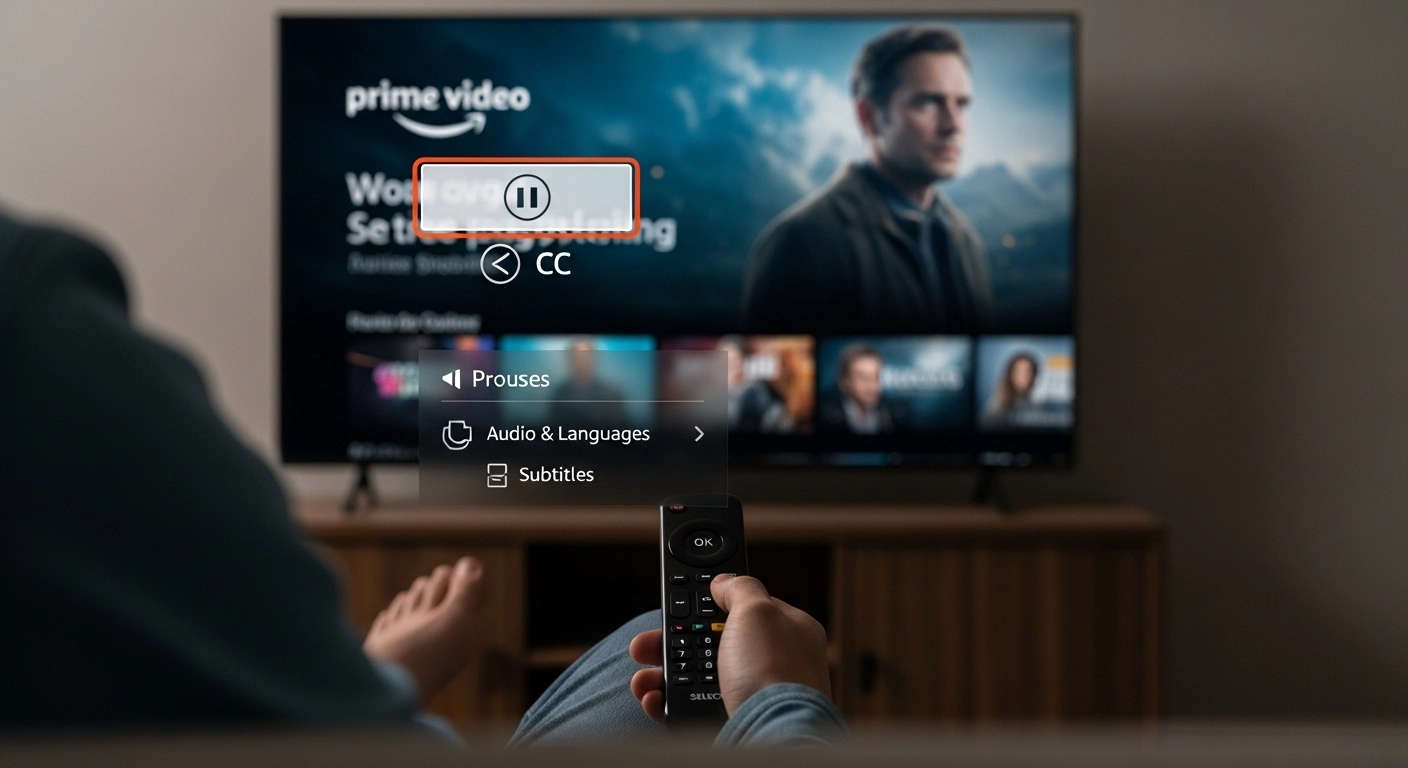
If you’ve ever wondered how to get closed captioning on Prime Video, you’re in the right place. In simple terms, closed captioning on Prime Video are on‑screen text subtitles that display dialogue and sound cues so you can follow along easily whether you’re watching in a loud room, learning a new language, or accessing accessibility features.
This comprehensive guide will walk you through exactly how to enable closed captioning on Prime Video across devices, why captions matter, how to personalize them, common issues (and fixes), and answers to your most important questions. Let’s make your streaming experience more clear, enjoyable, and accessible. 🎥💬
What Are Closed Captions on Prime Video? 📺💬
Closed captions (CC) are text versions of the spoken words and important sound cues in a video. They’re designed to help:
-
People who are deaf or hard of hearing
-
Viewers in noisy environments
-
Language learners
-
Anyone who simply wants to read along
Unlike open captions, which cannot be turned off, closed captions on Prime Video can be toggled on and off. Let’s explore how to get them everywhere you watch. 🚀
Why You Should Use Closed Captioning on Prime Video 🧠❤️
-
Improves comprehension of dialogue and context
-
Supports accessibility for all viewers
-
Helps if English isn’t your first language
-
Lets you watch without sound in public spaces
-
Encourages learning new words and accents
-
Syncs audio with on‑screen text for clarity
Closed captioning is more than text — it’s inclusion, clarity, and choice.
How to Get Closed Captioning on Prime Video – On Your Phone 📱
Here’s how to turn on captions while watching Prime Video on Android or iPhone:
-
Open the Prime Video app
-
Play the show or movie you want
-
Tap the screen to show playback controls
-
Tap the speech bubble icon 💬
-
Choose Captions (CC)
-
Select your language preference
Boom! Your captions should now appear on‑screen. Simple and clear. 👏
How to Get Closed Captioning on Prime Video – On Smart TV 📺
Watching on a smart TV (Samsung, LG, Vizio, Sony)? Here’s how:
-
Open Prime Video and play your content
-
Press Up on your remote
-
Navigate to the speech bubble icon 💬
-
Select Captions/Subtitle options
-
Choose your language
-
Captions should appear automatically
If captions don’t show, use your remote’s options or settings button to open subtitle preferences.
How to Get Closed Captioning on Prime Video – On Fire TV 🔥📺
Since Fire TV and Fire Stick are Amazon devices, captions are easy to enable:
-
Play your video
-
Press Menu (≡) or Down on the remote
-
Choose Subtitles & Audio
-
Select Captions On
-
Pick your language
Enjoy! And if you want bigger or stylized captions, we’ll cover that next.
How to Customize Caption Appearance on Prime Video 🎨💬
Want bigger text, color changes, or style tweaks?
On Mobile:
-
Go to Settings > Accessibility > Caption Preferences
-
Adjust text size, style, color background
On Fire TV:
-
Go to Settings > Accessibility > Closed Captions
-
Change text size, opacity, font
Custom captions make reading easier and more pleasurable — especially if you watch a lot.
How to Get Closed Captioning on Prime Video – On Roku 📺✨
Roku users can turn on captions like this:
-
Press asterisk button (*) on remote
-
Choose Closed Captioning
-
Toggle On
-
Adjust style as needed
If Prime Video doesn’t show the captions, enable Roku system captions first.
How to Get Closed Captioning on Prime Video – On Apple TV 🍏✨
Here’s what to do on Apple TV:
-
Start playing your show
-
Swipe down on the remote
-
Select Subtitles
-
Choose English (or your language)
Pro tip: You can also go to Settings > Accessibility > Subtitles & Captioning to customize.
How to Get Closed Captioning on Prime Video – On Xbox & PlayStation 🎮💬
Console users — yes, you can CC too!
Xbox:
-
Play content
-
Press Menu
-
Go to Subtitles & Audio
-
Turn on captions
PlayStation:
-
Play video
-
Press Options
-
Select Subtitles & Captions
-
Turn on captions
Enjoy gaming and streaming seamlessly with text support.
Common Mistakes When Trying to Get CC on Prime Video ❌🛠️
If captions don’t show, these are common culprits:
-
Captions are turned off in the app
-
Device caption settings override app settings
-
You’re watching content without caption support
-
Language preferences don’t match
-
App needs an update
Before panicking, check each step — one will usually fix it.
Why Captions Sometimes Don’t Appear on Prime Video 🔍
Not all titles support closed captions, especially older shows or international uploads.
If CC isn’t showing:
✔ Check language settings
✔ Try another episode
✔ Update your app/device
✔ Restart your device
Most of the time, the issue is just a setting or outdated software.
Accessibility Benefits of Closed Captioning 🌍❤️
Closed captions on Prime Video help:
-
Deaf and hard of hearing viewers
-
People with auditory processing needs
-
Learners of new languages
-
Those in loud or quiet environments
-
Anyone who prefers reading along
Accessibility means everyone gets to enjoy stories.
How CC Helps Language Learners on Prime Video 🌐📖
If you’re learning English, Spanish, or other languages:
-
Read and hear simultaneously
-
Identify accents and slang
-
Pause to learn new words
-
Practice listening comprehension
Captions are like a built‑in language tool.
Prime Video Closed Caption Settings You Should Know ⚙️💡
Remember:
-
CC = Closed Captions
-
Subtitles may differ (subtitles show dialogue only; CC shows audio cues too)
-
Preferred language settings affect availability
-
Devices may override app settings
Understanding these helps avoid confusion.
Troubleshooting When CC Won’t Turn On 🧰📺
Try this step‑by‑step checklist:
-
Close and reopen Prime Video
-
Update the app
-
Restart your device
-
Check caption/language settings
-
Try a different title
-
Reinstall the app
Most problems fix with just a few steps.
How to Get Prime Video CC on Offline Downloads 📥💬
Yes — you can watch downloaded content with captions!
-
Download the title
-
Go to My Stuff > Downloads
-
Play the downloaded video
-
Tap/Ctrl for CC icon
-
Turn on closed captions
Offline CC works just like online — sweet and simple. ❤️
Caption Language Options on Prime Video 🌍🗣️
Some titles offer multiple caption languages. Look for:
-
English
-
Spanish
-
French
-
Portuguese
-
German
-
Japanese
-
Others (depending on title/licensing)
If you don’t see your language, it might not be available — try the “Subtitles & Audio” menu.
How to Get Prime Video CC on Web Browser 💻📺
Watching on a computer?
-
Go to primevideo.com
-
Play your video
-
Click the CC icon (speech bubble)
-
Choose your language
If the CC icon isn’t visible, hover your mouse — controls sometimes hide.
Caption Sync Issues on Prime Video 💬⏱️
If captions are lagging:
-
Pause and resume
-
Turn CC off and on
-
Switch titles back and forth
-
Close the app/browser
-
Restart your device
Sync issues are usually temporary.
Best Practices for Using CC on Prime Video 🎥💡
-
Turn on captions before watching
-
Use customized font/size settings
-
Choose your language preference
-
Update apps regularly
-
Report missing or inaccurate captions
Good habits make for smoother streaming.
How to Contact Support for Caption Problems 🛟📞
If all else fails:
-
Visit Prime Video Help
-
Use live chat or email
-
Include device info and screenshots
-
Explain what you’ve tried already
Support teams can help with deeper issues.
Accessibility Tools That Complement Prime Video CC 🧠✨
Combine captions with:
-
Screen readers
-
Audio descriptions
-
Adjustable font settings
-
Brightness & contrast tools
These make watching more comfortable and inclusive.
FAQ — Closed Captioning on Prime Video (Featured Snippet Ready)
Q1: How do I enable closed captioning on Prime Video?
A1: Play a video, tap the CC/speech bubble icon, and select your language. Done!
Q2: Why don’t captions show on my Prime Video?
A2: Check if captions are supported on that title and your device settings.
Q3: Can I change caption size on Prime Video?
A3: Yes! Go to your device accessibility or subtitle settings to adjust.
Q4: Do downloaded videos support captions?
A4: Yes — downloaded shows/movies still allow caption access.
Q5: Are captions the same as subtitles?
A5: Not exactly — CC also shows sound cues like [music] and [doorbell].
Q6: Which languages are available for captions?
A6: It varies by title; common options include English, Spanish, French, and more.
Q7: How do I fix caption sync issues?
A7: Pause, restart, toggle CC off/on, or restart your device.
Q8: Can I get CC on every device?
A8: Yes — phones, TVs, consoles, web browsers, and streaming sticks all support captions.
Q9: Why are captions missing on older shows?
A9: Some titles have limited caption licensing — rare but possible.
Q10: How do I report caption problems?
A10: Use Prime Video Help to send feedback with device and title details.
Conclusion — Enjoy Clearer, More Inclusive Streaming ❤️✨
Now you know exactly how to get closed captioning on Prime Video across all your devices phones, TVs, consoles, browsers, and offline downloads. Closed captions aren’t just text: they’re access, understanding, comfort, and choice. Use them to watch more clearly, learn more easily, and enjoy every moment without missing a beat.
Whether you’re streaming in a busy space, learning a language, or supporting a loved one with hearing needs, captions elevate the experience. So go ahead — turn them on, customize your look, and make your watchlist even better. 🎬💬
Enjoy watching, and never miss a word again! ❤️📺
Tag someone who needs this guide! 👇

Blending creativity and humor to build memorable brand voices.