
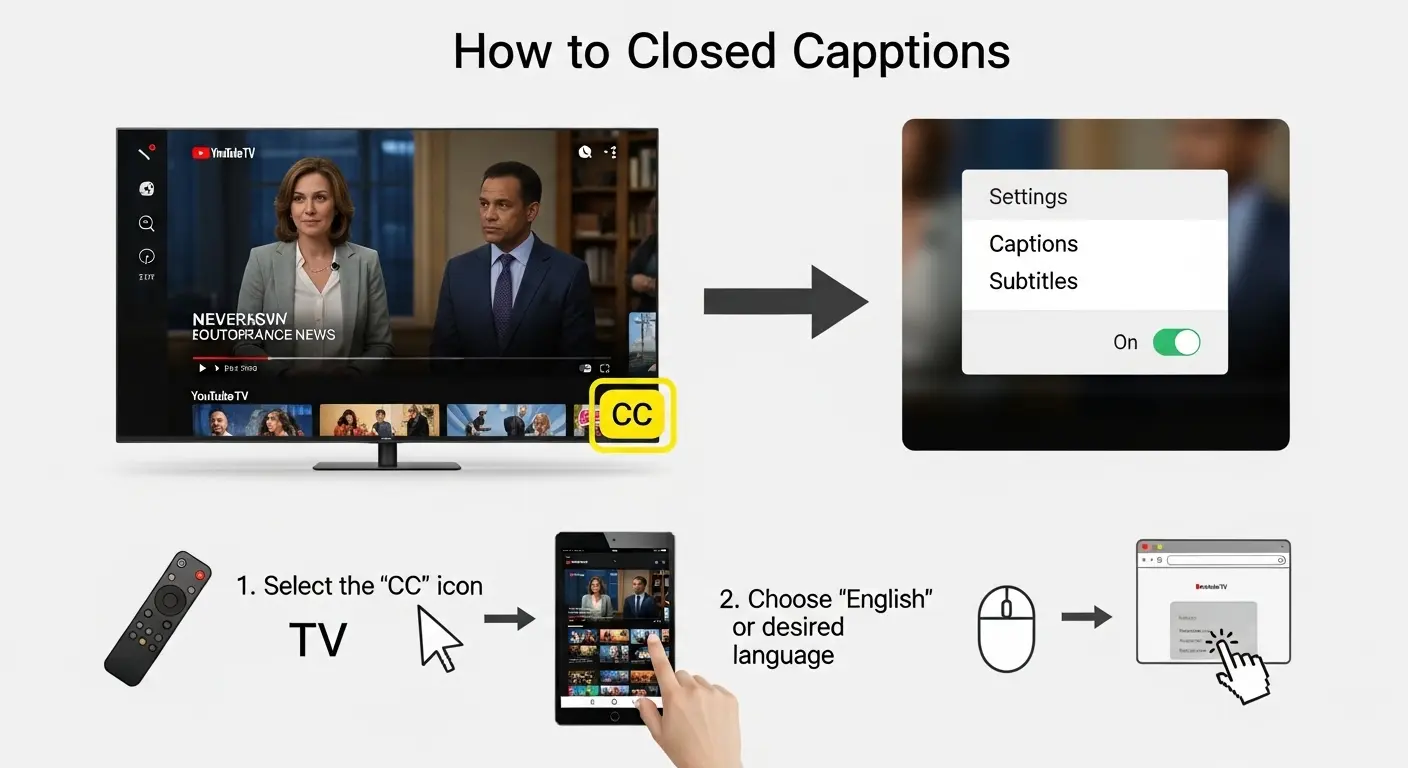
Closed captions on YouTube TV are onscreen text versions of the spoken dialogue and important audio cues in live and recorded programming. They can be turned on or off and customized for size, language, and style to make content more accessible and enjoyable for everyone.
What Are Closed Captions on YouTube TV? 🤔
Closed captions show the dialogue and key sounds in text form on your screen. They’re different from subtitles (which only translate spoken language) because captions also include sound cues like “[door creaking]” or “[music playing]” perfect for viewers who are deaf, hard of hearing, or watching without sound.
Why Closed Captions Matter ❤️
Closed captions help:
-
Improve comprehension for every viewer
-
Make content accessible to people with hearing loss
-
Let you watch without sound in public places
-
Support language learners
-
Capture tricky or accented speech
-
Enhance search indexing within platforms
How to Turn On Closed Captions on YouTube TV (Step‑by‑Step) 📺
-
Open the YouTube TV app on your device.
-
Start playing any live or recorded show.
-
Tap the screen to reveal playback controls.
-
Look for the CC (Closed Captions) icon.
-
Tap CC to turn captions on.
-
If available, choose caption language.
-
Continue watching with captions active.
Tip: Some devices require you to open the Settings or Accessibility menu first.
YouTube TV Captions on Mobile (iOS & Android) 📱
To enable captions:
-
Open the YouTube TV app.
-
Play a video.
-
Tap the screen.
-
Tap the CC icon.
-
Choose “English” or another caption option.
On Android:
-
You may also enable system‑level captions in Settings → Accessibility → Captions to customize style.
YouTube TV on Smart TVs 📺
Most smart TV captions:
-
Are found under the up arrow / options menu while watching.
-
Some remotes have a dedicated CC button.
-
If not visible, press Menu → Captions/Audio → On.
Every TV brand’s interface is slightly different, so check your TV’s caption settings if you don’t see the option immediately.
Caption Settings You Can Customize ⚙️
You can usually change:
-
Font size (small to large)
-
Text color
-
Background opacity
-
Language options
-
Style presets
These appear under Settings → Accessibility → Captions or in‑app caption menus.
Language Options for YouTube TV Captions 🌍
Not all shows offer multiple languages, but if available:
-
Choose a language in the CC language menu
-
Some live events auto‑generate captions in multiple languages
-
Use third‑party translation options if needed
Voice Search to Enable Closed Captions 🎙️
On supported devices like Chromecast or Apple TV:
-
Say: “Turn on closed captions”
-
Or: “Show captions in English”
This triggers the caption feature without navigating menus.
Troubleshooting: Captions Not Showing ❌
Try:
-
Restarting the app
-
Updating YouTube TV
-
Checking your device’s system settings
-
Turning captions off and on again
-
Ensuring the show supports captions
Not all content has captions (especially some live events or older uploads).
YouTube TV Captions and Accessibility Features 💡
Closed captions work with other accessibility tools:
-
VoiceOver (iOS)
-
TalkBack (Android)
-
Screen readers on smart TVs
This makes YouTube TV inclusive for a wide range of users.
Auto‑Generated vs. Professional Captions 📜
-
Auto‑generated captions: Faster, may have errors
-
Professional captions: More accurate, used on most official content
YouTube TV relies heavily on machine learning to generate captions but continues improving accuracy over time.
How to Adjust Caption Style on YouTube TV 🎨
-
Open Settings → Accessibility → Captions
-
Choose a preset (Standard, Large Text, High Contrast)
-
Tweak font and background colors
-
Save your custom style
This helps if you need higher readability or personal preference.
Using YouTube TV Captions for Language Learning 📘
Captions help learners:
-
Match spoken words to text
-
Understand regional pronunciation
-
Practice reading and listening together
-
Slow playback without losing context
Next time you watch a foreign drama, activate captions to boost comprehension.
Caption Speed and Playback Tips ⚡
• Some devices let you adjust playback speed.
• Combined with captions, this helps catch tricky dialogue.
• Try 1.25× on slow sections to improve understanding.
This is especially useful for dense documentaries or fast dialogue.
Live TV vs. Recorded Captions ⏱️
-
Live TV captions are often auto‑generated and may lag slightly.
-
Recorded TV captions are usually more accurate and synced.
Expect slight timing differences during live sports or fast talk shows.
Missed Caption Moments? Use Replay 📼
If captions lag:
-
Pause the live stream.
-
Replay a few seconds.
-
Watch with captions engaged.
This is a practical way to catch missed cues during fast scenes.
Parental Controls and Closed Captions 🛡️
Parents can:
-
Force captions on kids’ shows
-
Set default caption preferences
-
Prevent accidental turning off of captions
Enable these in the Parental Control Settings of your app.
Common Mistakes to Avoid 🚫
✖️ Not checking caption availability before watching
✖️ Assuming all shows have multiple languages
✖️ Skipping caption customization
✖️ Forgetting system‑level caption controls
✖️ Ignoring accessibility settings
Avoid these to improve your viewing experience instantly.
Pro Tips to Get Better Caption Experience 💡
✨ Update your app regularly
✨ Restart your device if captions glitch
✨ Customize style to increase readability
✨ Use voice search for quick toggling
✨ Report caption errors to improve future accuracy
These small habits make a big difference.
Engagement Checklist for Caption Use 📋
✔️ Are captions turned on?
✔️ Is the language correct?
✔️ Is the font readable?
✔️ Are you watching live or recorded?
✔️ Do you need larger text or high contrast?
A quick mental checklist before streaming saves headache later.
FAQ — Your YouTube TV Caption Questions Answered 📚
1. How do I turn on closed captions on YouTube TV?
Open the app, start a show, tap the CC icon, and select your language.
2. Why aren’t captions showing?
Not all content supports captions, or your device needs a menu navigation.
3. Can I change caption size?
Yes — go to Settings → Accessibility → Captions on most systems.
4. Do live shows have captions?
Yes, usually via auto‑generated text, but accuracy may vary.
5. Can I watch with captions in another language?
Only if the show offers multiple caption languages.
6. Do captions work offline?
No — YouTube TV captions require an internet connection.
7. Can I customize caption colors?
Yes — through system accessibility settings on most devices.
8. Does every device support captions?
Most do, but options vary by platform.
9. Can captions help with language learning?
Absolutely — they help match spoken dialogue with written text.
10. Are captions accurate?
Auto‑captions are improving but may still have errors during fast dialogue.
Conclusion 💖
Getting closed captions on YouTube TV shouldn’t feel technical or stressful it should feel empowering and personalized. Whether you’re watching to relax, learn, or stay informed, captions help you connect more deeply to your content.
By following the steps, customizing your experience, and avoiding common pitfalls, you can unlock clearer, more accessible viewing across every device you own. Enjoy watching with clarity and confidence! 🎬✨

Creating motivational and viral-ready captions for modern audiences.