
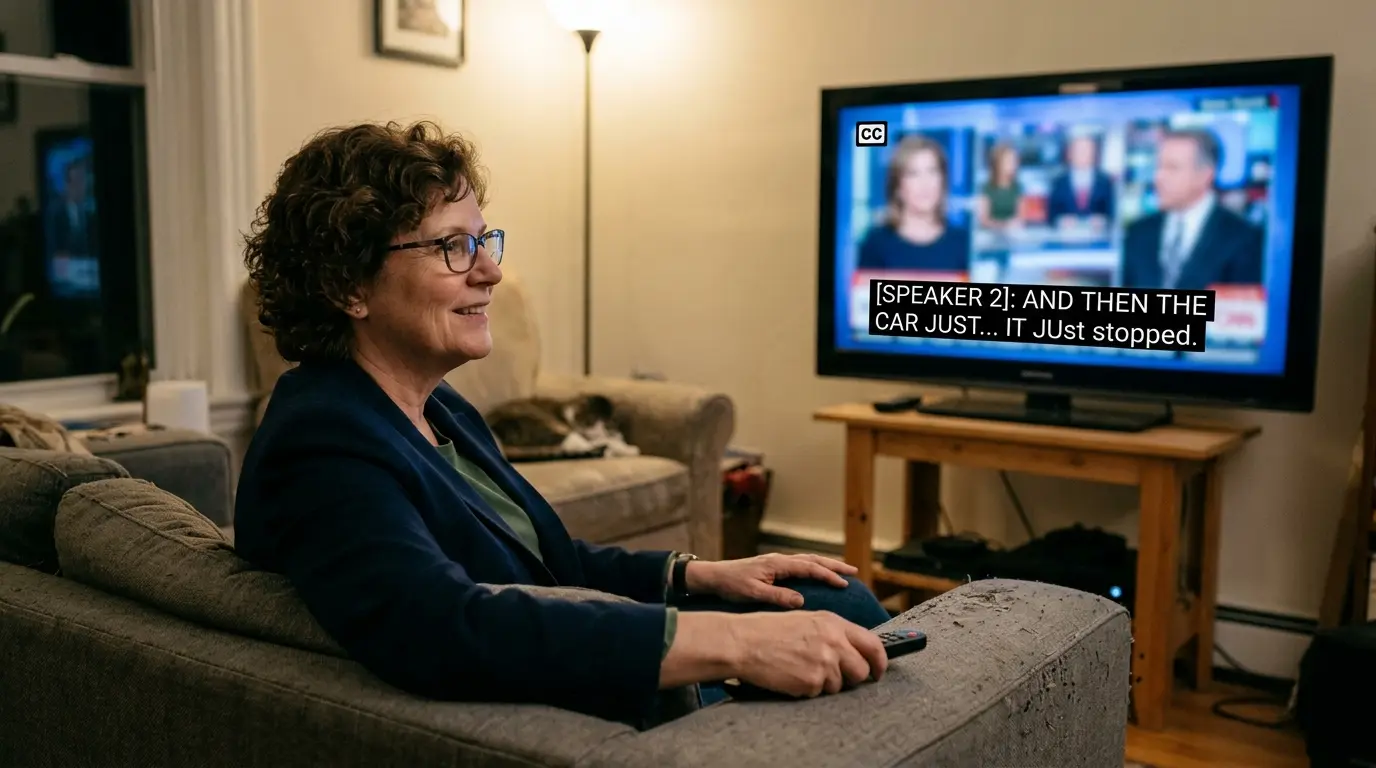
Closed captions (CC) are text overlays that display spoken dialogue and sounds in videos. If you want to get rid of closed captions, it typically involves adjusting the CC settings on your device, app, or streaming platform. This guide covers all methods to turn off closed captions across devices, apps, TVs, and streaming services, ensuring you enjoy videos without on-screen text distractions.
Closed captions can be helpful for accessibility, but sometimes they clutter the screen, spoil the cinematic experience, or distract from visuals. Let’s walk through everything you need to know to remove or customize closed captions effectively.
How to Get Rid of Closed Caption on YouTube 🎥❌
-
Open the video and locate the CC button on the bottom-right of the player.
-
Click the CC icon to turn captions off instantly.
-
On mobile, tap the three dots → Captions → Off.
-
For auto-generated captions, the same process applies.
-
You can change language instead of turning off if desired.
-
Check your account settings → playback settings for default CC options.
-
Clear your browser cache if captions won’t turn off.
-
Update the YouTube app to ensure CC controls work properly.
-
Keyboard shortcut: press C on desktop to toggle captions.
-
Use extensions like Enhancer for YouTube for permanent CC preferences.
-
Restart the video if changes don’t take effect.
-
YouTube TV users: toggle CC in settings → Accessibility.
-
Remember captions may reappear after updates check regularly.
-
Use full-screen mode adjustments to ensure CC doesn’t block visuals.
-
If a video creator embeds captions, turning them off may not hide them completely.
How to Get Rid of Closed Caption on Netflix 📺❌
-
Open Netflix and start your show or movie.
-
Select the speech bubble icon on-screen.
-
Toggle Subtitles Off to remove CC immediately.
-
On Smart TVs, use your remote → Audio & Subtitles → Off.
-
Mobile apps: tap the screen → Audio & Subtitles → Off.
-
Netflix remembers your preference per profile.
-
Adjust default language settings in your account for permanent CC control.
-
Restart Netflix if CC appears unexpectedly.
-
Avoid third-party CC overlay apps while streaming.
-
For downloaded content, adjust subtitles in Playback Settings before offline viewing.
-
Some international content may auto-enable captions; check region settings.
-
Voiceover narration often requires separate audio settings, not CC toggling.
-
Use accessibility menu for complete CC customization.
-
Check firmware updates for Smart TVs to ensure proper CC control.
-
CC can be re-enabled automatically on new devices; always double-check settings.
-
Contact Netflix support if CC persists despite all changes.
How to Get Rid of Closed Caption on Hulu 📺❌
-
Play any Hulu content and tap the Settings gear.
-
Select Captions & Subtitles → Off.
-
Mobile users: swipe up → tap CC button → Off.
-
Update the Hulu app to ensure CC toggling works correctly.
-
For browser users, clear cache if captions persist.
-
Hulu keeps CC preferences per profile.
-
Use keyboard shortcut Ctrl + Alt + C on desktop to toggle CC.
-
Streaming devices (Roku, Fire Stick) may require system-level CC adjustments.
-
If captions reappear, sign out and back in.
-
Hulu Originals may have default CC settings embedded.
-
Some browsers may override app settings; check Chrome/Edge for CC extensions.
-
Always check Accessibility Settings on your device.
-
Toggle captions off before full-screen mode for smooth playback.
-
For multiple languages, select your preferred language or turn off completely.
-
Reboot device if persistent caption overlays appear.
How to Get Rid of Closed Caption on Amazon Prime Video 🎬❌
-
Start playing your Prime Video content.
-
Click the speech bubble icon → Subtitles → Off.
-
On mobile, tap screen → Subtitles → Off.
-
Smart TVs: use remote → CC/Audio settings → Off.
-
Fire TV users: go to Settings → Accessibility → Captions → Off.
-
Keep app updated for accurate subtitle control.
-
Downloads require subtitle adjustments in Playback Settings before offline viewing.
-
Language-specific captions: select Off instead of switching language.
-
Persistent captions may require clearing cache.
-
Some foreign films auto-enable captions; toggle manually.
-
Closed captions can be set by profile, so check which profile is active.
-
CC styles (font, size) can be reset if toggling Off doesn’t remove overlay.
-
Ensure device accessibility settings aren’t forcing captions globally.
-
Restart device for persistent CC removal.
-
Contact Prime Video support if embedded captions won’t disappear.
How to Get Rid of Closed Caption on Apple TV 🍏❌
-
Open Settings → Accessibility → Subtitles & Captioning → Off.
-
During playback, swipe down → Subtitles → Off.
-
Siri Remote: press down → Captions → Off.
-
Check language settings to ensure automatic CC doesn’t reappear.
-
Update tvOS to the latest version.
-
Reboot Apple TV for persistent captions.
-
Some apps (Netflix, Hulu) require app-specific CC control.
-
Enable Closed Captions + SDH only if needed.
-
Reduce font size if screen looks cluttered instead of removing completely.
-
Apple TV remembers CC settings per profile.
-
Reinstall apps if captions persist.
-
Check for accessibility overrides in Device → Settings → Accessibility → Captions.
-
Toggle captions before full-screen for smoother removal.
-
VoiceOver and TalkBack features may force captions; check accessibility.
-
Contact Apple Support if CC is still visible after all steps.
How to Get Rid of Closed Caption on Roku 📺❌
-
Go to Settings → Accessibility → Captions → Off.
-
During playback, press Star → Captions → Off.
-
Remote shortcut: CC button on some Roku remotes.
-
Restart Roku device if captions persist.
-
Profile settings may override device-level CC.
-
Roku firmware updates may reset caption preferences.
-
Some streaming apps may have independent CC settings.
-
Toggle captions before full-screen for effective removal.
-
Check for hidden accessibility features forcing CC.
-
Language settings may require Off toggle per language.
-
CC may appear on older apps; update or reinstall.
-
Reset Roku to factory if persistent overlay.
-
Remote control shortcuts vary by model; check manual.
-
Verify “Always On” CC in Accessibility settings is disabled.
-
CC overlay may be part of a live TV channel; contact provider.
How to Get Rid of Closed Caption on Smart TVs 🖥️❌
-
Access Menu → Settings → Accessibility → Captions → Off.
-
Each brand (Samsung, LG, Sony) has a slightly different menu.
-
Remote may have direct CC button.
-
Update firmware to remove software glitches.
-
Some apps override TV CC; check in-app settings.
-
Language-specific captions may need separate Off toggling.
-
Restart TV for persistent CC removal.
-
Disable “Always On” CC options.
-
Live broadcasts may require provider settings adjustments.
-
CC font size, color, and style can be reset.
-
Older models may need factory reset to remove persistent CC.
-
Accessibility features like voice guide may force captions; toggle off.
-
Check HDMI device settings if CC comes from connected box.
-
Streaming apps (Netflix, Hulu) may need individual CC toggle.
-
If issues persist, consult your TV manual or support line.
How to Get Rid of Closed Caption on Windows PC 💻❌
-
VLC Player: Playback → Subtitles → Disable.
-
Windows Media Player: Play → Lyrics, captions, and subtitles → Off.
-
YouTube: CC button on player → Off.
-
Streaming apps: CC toggle in player menu.
-
Keyboard shortcuts: C for YouTube, Alt + C for VLC.
-
Update video apps for proper CC behavior.
-
Browser cache may cause persistent captions; clear cache.
-
Disable automatic CC in app settings.
-
Windows 10 Accessibility: Settings → Ease of Access → Closed Captions → Off.
-
Third-party overlays may need uninstall.
-
Full-screen mode may auto-enable CC; check settings.
-
Browser extensions forcing captions should be disabled.
-
Restart PC if CC persists.
-
Language settings may require adjustments.
-
Ensure media files themselves don’t have hardcoded subtitles.
How to Get Rid of Closed Caption on Mac 💻❌
-
QuickTime Player: View → Subtitles → Off.
-
Safari: CC toggle in HTML5 video player.
-
Netflix or Prime: App/subtitle menu → Off.
-
macOS Accessibility: System Preferences → Accessibility → Captions → Off.
-
VLC: Subtitle menu → Disable.
-
Keyboard shortcuts: Cmd + Shift + C in VLC.
-
Update apps to latest version.
-
Clear browser cache for online players.
-
Persistent captions may be hardcoded; not removable.
-
Language selection may need Off toggle.
-
Reboot Mac for stubborn CC.
-
Disable third-party CC overlay apps.
-
Some media players may embed captions; check file type.
-
Full-screen mode may restore CC; toggle again.
-
Contact app support for platform-specific solutions.
How to Get Rid of Closed Caption on Mobile Devices 📱❌
-
iOS: Settings → Accessibility → Subtitles & Captioning → Off.
-
Android: Settings → Accessibility → Captions → Off.
-
YouTube mobile: Tap screen → CC → Off.
-
Netflix mobile: Tap speech bubble → Subtitles → Off.
-
Hulu: Tap CC button → Off.
-
Prime Video: Tap Subtitles → Off.
-
Update apps to latest versions.
-
Restart device for persistent captions.
-
Check accessibility overrides in device settings.
-
Some apps auto-enable CC; toggle before playback.
-
Language preferences may require per-app adjustment.
-
Disable third-party CC apps.
-
Streaming boxes connected to mobile may require device settings.
-
Subtitles in downloaded content: toggle in playback settings.
-
Contact support if CC remains visible.
Common Mistakes When Trying to Remove Closed Captions ⚠️❌
-
Forgetting to toggle CC within the app, relying on device settings.
-
Not updating the app or firmware.
-
Confusing subtitles with CC; some platforms treat them differently.
-
Ignoring profile-specific preferences.
-
Not restarting the device after changing settings.
-
Overlooking accessibility overrides.
-
Assuming hardcoded captions can be turned off.
-
Forgetting language-specific toggles.
-
Using outdated versions of apps.
-
Neglecting browser cache for online streaming.
-
Not checking HDMI/streaming box overlays.
-
Misunderstanding live TV caption settings.
-
Forgetting full-screen may reset CC.
-
Overcomplicating toggles; sometimes one click suffices.
-
Assuming CC will always be permanent; some reset automatically.
Engagement Tips for Caption-Free Viewing 📈✨
-
Adjust settings before full-screen for smooth experience.
-
Toggle CC off for cinematic immersion.
-
Use device accessibility settings to customize CC behavior.
-
Keep apps updated for bug-free toggling.
-
Restart apps or devices if CC persists.
-
Review profile-based settings to avoid defaults.
-
Use shortcuts for faster CC toggling.
-
Check individual app settings per language.
-
Test streaming on multiple devices to verify CC removal.
-
Share tips with friends experiencing CC issues.
-
Save preferred settings for offline content.
-
Avoid third-party apps that force captions.
-
Monitor firmware updates that reset CC.
-
Use official support channels for stubborn cases.
-
Comment or tag support if CC persists after troubleshooting.
Emotional & Psychological Insights Behind CC Usage 💭❤️
-
Captions can help with accessibility, comprehension, or language learning.
-
Constant on-screen text can reduce enjoyment for some viewers.
-
Removing CC can increase immersion, focus, and engagement.
-
Understanding your preference empowers control over your viewing experience.
-
CC may enhance inclusion but can distract if not needed.
-
Choosing when to enable or disable CC can create a more mindful media consumption habit.
-
Recognizing emotional triggers for CC preference can improve screen time satisfaction.
-
Removing cluttered text enhances the visual and auditory connection to content.
-
CC customization reflects personal control over media environment.
-
Awareness of CC options fosters a tailored entertainment experience.
Caption Writing Framework (Meta Tip) ✍️💡
-
Identify if content is spoken or subtitled.
-
Decide whether CC adds value or distraction.
-
Toggle CC only when it aligns with viewing goals.
-
Use platform-specific settings to manage preferences.
-
For content creators: decide if CC is essential for accessibility.
-
Keep default CC off for immersive experiences.
-
Test on multiple devices for consistency.
-
Review subtitle style for readability.
-
Use CC only in learning, noisy environments, or accessibility needs.
-
Encourage audience feedback on CC usage.
Relevant Hashtags for CC-Free Videos 📱🏷️
-
#NoCC
-
#ClosedCaptionOff
-
#SubtitleFree
-
#StreamingTips
-
#MediaControl
-
#CleanScreen
-
#CCRemoval
-
#WatchWithoutCC
-
#VideoTips
-
#AccessibilitySettings
-
#StreamSmarter
-
#DigitalFreedom
-
#MediaOptimization
-
#TechTips
-
#DeviceSettings
FAQ Section How to Get Rid of Closed Caption ❓🎬
Q1: How do I turn off closed captions on YouTube?
A1: Click the CC icon on the player or go to Settings → Captions → Off.
Q2: Can I permanently remove closed captions on Netflix?
A2: Set subtitles to Off in your profile settings; device and app updates may reset them.
Q3: Why do closed captions keep appearing even after turning them off?
A3: CC may be hardcoded, app-specific, or affected by accessibility settings.
Q4: Do mobile devices have different CC settings?
A4: Yes, check iOS or Android Accessibility → Captions & Subtitles → Off.
Q5: Can I remove CC from downloaded content?
A5: Yes, adjust playback settings before downloading.
Q6: Are CC and subtitles the same?
A6: Not always. CC includes dialogue + sound descriptions; subtitles show spoken dialogue only.
Q7: How do I remove CC on a Smart TV?
A7: Menu → Settings → Accessibility → Captions → Off; check app-specific toggles too.
Q8: Do I need CC for foreign language videos?
A8: Optional you can toggle them on for comprehension or off for immersive viewing.
Q9: How to remove CC on streaming devices like Roku or Fire Stick?
A9: Device Settings → Accessibility → Captions → Off; app-specific toggles may apply.
Q10: Can I customize CC instead of removing it?
A10: Yes, change font, size, and color in Accessibility or app subtitle settings.
Conclusion 🌟❌
Removing closed captions can significantly enhance your video-watching experience. Whether it’s YouTube, Netflix, Hulu, Prime Video, or Smart TVs, the ability to get rid of closed caption is about customizing your media environment for enjoyment, focus, and immersion.
By following the steps outlined in this guide, you can regain control, avoid common mistakes, and ensure captions only appear when you want them. Take charge of your viewing experience turn off CC and immerse yourself fully in the content you love!

Crafting powerful captions that turn simple ideas into engaging stories.